

You open Notion to check a single project note. Twenty minutes later, you are staring at a page that contains half a dozen meeting notes, a buried task list, three research snippets, and the beginnings of a draft you forgot you started. The workspace is brilliant at holding everything. It has always been less brilliant at helping you make sense of what you have actually captured. That is precisely the gap Notion AI tries to close.
Notion AI isn’t a separate app. It lives inside the block you’re typing in, the database you’re filtering, and the long document you don’t have time to summarise. For people who already spend hours inside Notion each week, that’s a real change: instead of copying text into a separate chatbot, you stay where your thinking already lives.
This guide is based on extended use across writing, research, project management, and study workflows. It covers what works reliably, what creates extra work, and where you might still prefer a standalone tool like ChatGPT, without the marketing gloss.
What Is Notion AI?
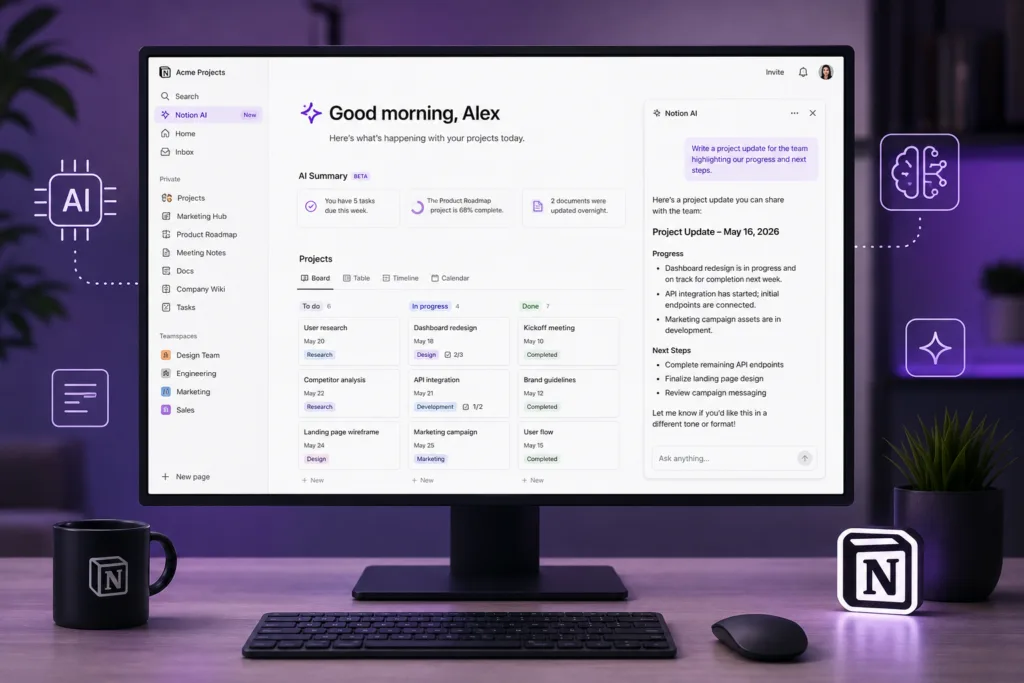
Notion AI is a set of artificial intelligence features built directly into the Notion workspace. It can write, edit, summarise, translate, brainstorm, extract action items, and answer questions using the content inside your Notion pages. Unlike a general-purpose chatbot, Notion AI has context from your workspace. You can ask it to improve a paragraph without leaving the document. You can highlight meeting notes and ask for decisions and owners. The AI understands that you are working inside a structured page, not just a blank chat window.
The practical advantage is that you do not need to explain what project you are working on. The AI already sees the page title, the surrounding blocks, and often the database properties. That context, while imperfect, reduces the amount of prompting you need to do.
Notion AI is not a separate subscription for everyone. Depending on the current plan, Notion AI may be included or available as an add-on. Notion can change its pricing and feature availability, so check your workspace settings for the latest details.
How Notion AI Fits Into the Notion Workspace
Notion AI appears in several places. You can trigger it by pressing the spacebar on an empty line, highlighting text and selecting “Ask AI”, or using the AI block inside databases and pages. The integration is designed to feel like part of the editor, not an external tool. This matters because friction kills productivity workflows. If you have to switch contexts, you often lose momentum. Notion AI reduces that switching cost.
One thing I noticed after a few weeks: the AI becomes most useful when your workspace is already structured. If your pages are a chaotic mix of random bullet points and untitled blocks, the AI struggles to deliver helpful output. When pages use clear headings, properties, and organised sections, the results are noticeably better.
How Notion AI Works
Under the surface, Notion AI uses large language models similar to those powering tools like ChatGPT and other generative AI assistants. The difference lies in how those models are prompted and constrained. Notion sends the content of your current page, along with your instruction, to the AI model. The model processes the request and returns text directly into your Notion block.
Because the AI sees your page content, it can reference specific notes, database entries, and recent edits. However, it does not have unlimited memory. Very long pages may be truncated. If you need to analyse a large document, you will often get better results by breaking it into smaller sections or using the AI on specific blocks. For a deeper technical explanation of what happens behind these interfaces, our article on How AI Tools Work: What Actually Happens Behind the Screen breaks down the process in plain language.
Key Notion AI Features
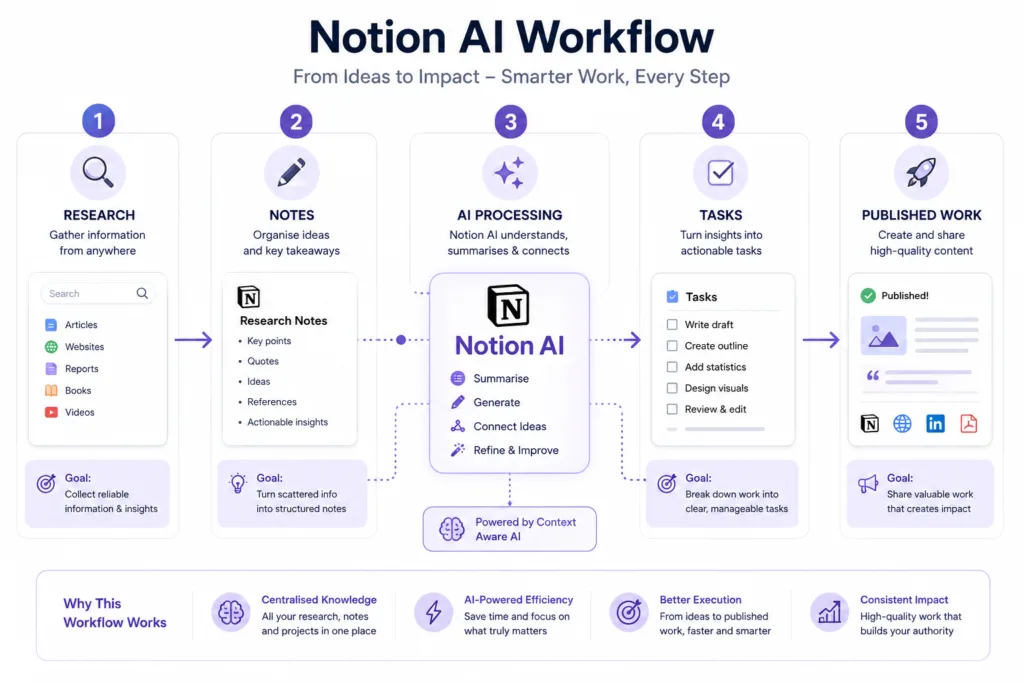
Notion AI bundles several capabilities into one interface. The most practical ones revolve around writing assistance, summarisation, and information extraction. Below is a breakdown that goes beyond feature labels.
| Feature | What it does | Best use | Practical value |
|---|---|---|---|
| Continue writing | Generates the next sentences based on existing text | Breaking writer’s block | Moderate Often needs editing |
| Improve writing | Rewrites for clarity, tone, or grammar | Polishing drafts | High Saves repetitive editing |
| Summarise | Condenses long text into key points | Meeting notes, research | High A real time-saver |
| Find action items | Extracts tasks and decisions from text | Project meetings | High Works best with clear notes |
| Translate | Converts text between languages | International teams | Useful Verify important nuances |
| Brainstorm ideas | Generates lists of suggestions | Content planning, naming | Good A useful starting point |
| Explain this | Simplifies complex text | Learning, onboarding | Helpful Good for quick understanding |
AI Writing and Editing Inside Notion
Writing with Notion AI feels different from using a dedicated writing assistant. The AI sits inside your draft, not alongside it. You can highlight a messy paragraph and ask it to rewrite in clear British English. You can turn bullet points into a coherent summary. The editor becomes interactive. This is genuinely useful for first drafts, internal documents, and places where perfect prose matters less than getting the idea across.
The catch is that Notion AI writing can sound formulaic. Left unchecked, it leans towards a corporate, slightly sterile tone. The best results come when you give specific tone and style instructions. Generic prompts produce generic output. The more context you provide about audience, purpose, and voice, the more natural the result.
Notion AI Prompt for Writing
Rewrite this paragraph in clear British English while keeping the original meaning and making the tone more conversational. Avoid corporate jargon. Aim for a thoughtful, editorial style.
Notion AI Prompt for Editing
Review this draft for clarity and conciseness. Identify sentences that are too long or difficult to follow. Suggest improvements without changing the core message.
Summarising Notes and Documents
This is one area where Notion AI consistently saves time. Highlight a lengthy set of meeting notes, research findings, or a dense article you have clipped into Notion, and ask for a summary. The AI produces a condensed version in seconds. The output is not always perfectly nuanced, but it is usually good enough to decide whether the full document is worth reading carefully.
The limitation appears with highly technical or domain-specific content. Summaries can flatten important distinctions. If your notes contain legal, medical, or scientific detail, treat the AI summary as a rough map, not the final record.
Notion AI Prompt for Meeting Notes
Turn these meeting notes into a concise summary with decisions, action items, owners and deadlines. Format the output as a simple table.
Extracting Key Information
Beyond summarisation, Notion AI can pull specific information from a page. You can ask it to list all questions raised, extract only the budget figures mentioned, or identify risks discussed in a project retrospective. This turns unstructured notes into structured data without manual re-typing. The feature works well when the original text is reasonably well-written. If notes are fragmented or full of shorthand, the AI guesses more and gets things wrong more often.
Brainstorming With Notion AI
Brainstorming inside Notion AI works best when you already have a starting point. An empty page with a vague prompt rarely produces surprising ideas. But if you feed it a half-formed concept, a target audience, and a few constraints, the suggestions become much more useful. For content creators, this can mean generating twenty potential angles for an article in under a minute. You then pick the best ones and discard the rest.