

I first opened Runway on a damp Tuesday afternoon in early 2024, hoping to turn a static storyboard into something moving. The result was a blurry, two-second clip of a dog that looked more like a sentient cloud. Fast forward to today, and I’m watching a colleague generate a 10-second commercial spot with accurate lip sync, controlled camera moves, and lighting that would make a gaffer weep. The tool hasn’t just improved; it has changed how solo creators and studios put a production together.
This isn’t a cheerleading piece. I have spent the better part of eighteen months inside Runway’s ecosystem, burned through thousands of credits on paid plans, and cursed at the screen when a generation looked like a Salvador Dalí meltdown. What follows is a realistic, deeply practical walkthrough of Runway AI in 2026. We will cover Gen-4, the Magic Tools, the pricing mess, the competitors nipping at its heels, and the exact prompts that actually work. If you’re trying to figure out whether Runway can replace your editing suite or your storyboard artist, you are in the right spot.
I should mention that a lot of the underlying AI concepts here tie into how creative software has changed more broadly. If you need a primer on how these models actually function under the hood, my colleague wrote an explainer on how AI tools process and generate content, which is a useful companion piece to this review.
What Actually Is Runway AI?
Strip away the marketing, and Runway is a browser-based creative suite built on top of proprietary generative video models. Unlike a traditional non-linear editor like Premiere Pro, where you splice and arrange footage, Runway generates pixels from noise. You feed it a text prompt, an image, or a rough video clip, and the machine learning pipeline synthesizes new frames. It started as a toolkit for experimental filmmakers, but it has rapidly become the default option for anyone who needs moving images without a camera.
The current flagship model, Runway Gen-4, is a real step up. Gen-3 was already impressive for maintaining temporal coherence, meaning objects didn’t flicker or morph between frames quite as often. Gen-4 introduces a much stronger understanding of physics and anatomy. Hands still occasionally sprout extra fingers, but the rate of catastrophic failures has dropped dramatically. It feels less like rolling a dice and more like giving instructions to a junior animator who occasionally zones out.
The Journey from Research Lab to Creative Staple
Runway wasn’t born in a vacuum. The company started as a small collective of artists and engineers playing with generative adversarial networks. They contributed to the early development of Stable Diffusion, but they quickly realised that images were just the starting point. Video is where the real commercial value and creative challenge lay. Their breakout moment came when they made text-to-video feel tangible, not just a theoretical arXiv paper.
Popularity exploded because they focused relentlessly on the user interface. While other research labs required you to fiddle with Python scripts and command lines, Runway offered sliders, previews, and a timeline. That accessibility opened the door for video editors who didn’t care about diffusion models but desperately needed B-roll footage. It fits a wider pattern with AI tools for creatives that used to be a novelty and are now something people actually rely on.
How the Machine Learning Pipeline Works
Under the bonnet, Runway uses a diffusion-based architecture. Without getting bogged down in the maths, imagine a process that starts with a screen of static noise. The model has been trained on millions of video clips paired with descriptive text. It knows that the phrase “golden hour, shallow depth of field” corresponds to certain pixel arrangements. It iteratively removes the noise, sculpting the chaos into a coherent clip, guided by your prompt. The “temporal layers” in Gen-4 ensure that frame 24 relates logically to frame 23, which is what prevents that trippy, acid-dream morphing you see in lesser tools.
For those interested in the search implications of this technology, AI is changing how we discover visual content. I’ve written previously about the role of AI in modern SEO strategies, and generative video adds another layer to that story.
Diving Into the Core Magic Tools
Runway isn’t just a single text-to-video box. It’s a collection of specialized modules. Calling them “filters” would be an insult. They are distinct generative engines. Let me walk you through the ones I use daily, and a few I find frustratingly limited.
Text to Video: The Headline Act
This is the feature everyone thinks of. You type a sentence, choose a style preset, and hit generate. In Gen-4, the fidelity has reached a point where you can specify lens types, camera movements, and lighting styles with remarkable precision. The difference between a good prompt and a bad one is vast. Generic prompts yield generic stock footage vibes. Specific, tightly written prompts yield cinematic gems. I’ll dig into the exact wording later, but know that Gen-4 respects your intent far more than Gen-3 did.
Motion Brush: Directing the Frame
Motion Brush remains the single most intuitive interface for AI video direction. You upload an image, literally paint over the area you want to move, and then adjust a horizontal slider to define the amount and direction of that movement. Want the water in a still lake to ripple while the mountains stay frozen? Paint the water. Want a character’s hair to blow in the wind? Paint the hair and set the slider to a subtle leftward drift. It feels like magic, but it is just very clever vector mathematics applied to latent space.
Pro Tip: Keep your brush strokes within logical boundaries. If you sloppily paint across an object’s edge, you will create a warping “melt” effect where the static pixels fight the moving ones. Use a hard brush for rigid objects, a soft brush for organic flow.
Act One: The Performance Capture Breakthrough
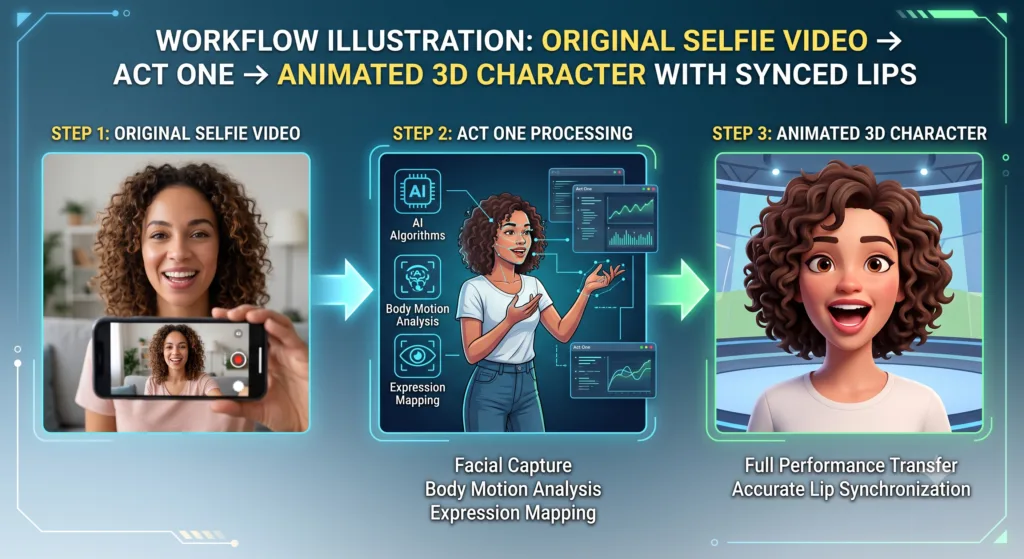
Act One is terrifyingly good. You upload a video of someone talking (say, a selfie clip from your phone) and a reference image of a character. Runway transfers the facial performance, including eye lines, micro-expressions, and lip movements, onto the static character image. The lip sync accuracy is some of the best I’ve seen outside of heavy 3D pipelines. It’s not perfect; rapid head turns can cause the generated face to “slip” slightly, looking like a mask. But for a talking-head explainer video or a stylized character narrative, it cuts production time from days to hours.
Camera Controls: The Cinematographer’s Dream
Text-to-video without camera control is just a fancy GIF. Runway’s dedicated Camera Controls panel lets you script zooms, pans, tilts, and roll movements directly within the generation process. You can keyframe a slow dolly zoom over 10 seconds, and Gen-4 will interpret the parallax shift with impressive spatial awareness. This feature alone makes it viable for professional AI filmmaking, as you can maintain a directorial style rather than accepting a fixed algorithmic viewpoint.
Expand Video & Outpainting
Generative Expand is a lifesaver when you’ve generated a masterpiece in a 1:1 aspect ratio but now need a 16:9 landscape format. The model hallucinates the surrounding environment based on the original frame’s edge pixels. It works beautifully for organic textures like forests, skies, and crowds, but it struggles with structured architecture, where it might invent a window that defies gravity. Outpainting takes this further, letting you pull the canvas outwards indefinitely.
Erase and Replace & Inpainting
Need to remove a logo from a jacket or a stray boom mic from a shot? The Erase tool, powered by inpainting, lets you brush over an area and generate a clean fill that matches the surrounding motion. It’s not After Effects’ Content-Aware Fill; it’s often smarter, understanding context and even replicating lighting changes across frames. However, on fine details like text on a screen, it still produces garbled nonsense.
Lip Sync & Video Extend
The Lip Sync feature lets you input an audio file and a generated face clip to lock the mouth shapes to dialogue. It works well with the Act One pipeline. Video Extend is a relatively new addition that takes a final frame of a generated clip and uses it as a seed to generate subsequent seconds. It’s useful for looping backgrounds or extending a sequence without breaking continuity, although the “drift” problem (where subjects slowly change appearance) still creeps in after about 20 seconds.
The Professional Workflow: From Idea to Export
I treat Runway as an idea engine first, an editing suite second. My typical workflow starts with a rough assembly edit in Resolve. I cut the voiceover first, then identify gaps. For each gap, I jump into Runway. I rarely generate a final shot from scratch. Instead, I use the Image to Video feature, feeding it a high-quality still from Midjourney or Flux AI. This gives me far tighter control over composition and lighting than a raw text prompt ever could.
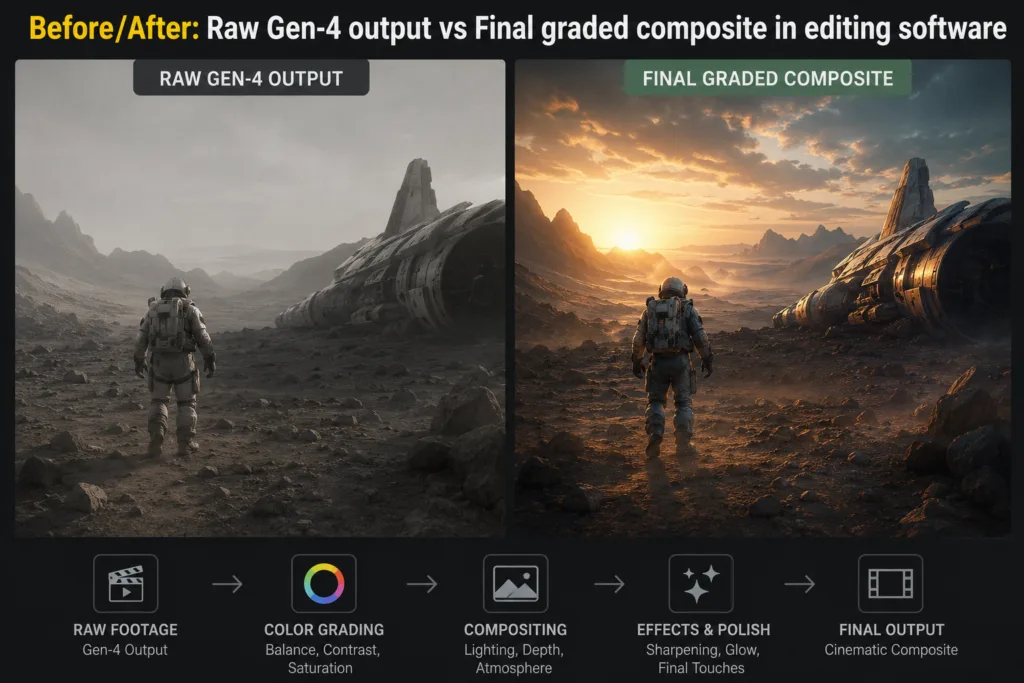
When working with Gen-4, I stick to 720p or 1080p previews. Rendering in 4K ProRes is available on the Unlimited plan, but it chews through credits like nothing else. I usually upscale later using a dedicated AI video upscaler, which often produces crisper geometry than Runway’s native up-rezzing. Once the clips are in my timeline, I apply a light film grain overlay. This trick matters more than it sounds like it should: a consistent grain layer masks the subtle inconsistencies in noise patterns between different AI-generated clips and unifies the look.
Runway for the Modern Content Creator
Different verticals use Runway in drastically different ways. A TikTok editor wants speed and a vertical 9:16 button. A filmmaker wants log colour profiles and high dynamic range. Here is how the tool stacks up across industries.
Social Media & Short-Form Video
For YouTube Shorts, Instagram Reels, and TikTok, Runway is effectively a cheat code. The ability to generate a looping background, place a product in the foreground, and add some Motion Brush sparkles means you can post daily without a production crew. The key is restraint. I see too many creators layering five different AI effects into one 15-second clip. It looks like a deep-fried meme. Pick one strong visual, let it breathe.
Advertising and Brand Storytelling
Agencies are using Runway for concept pitches. Creating a “rip-o-matic” used to require stock footage subscriptions. Now a creative director can generate specific, moody vignettes that sell an idea before a single frame is shot. The commercial licensing is clear on paid plans: you own the outputs. I’ve done product marketing videos where we dropped a 3D render of a new fragrance bottle onto an AI-generated marble plinth, with generated waves crashing behind it. The client couldn’t believe it was 90% text-to-video.
Film Production and Pre-Visualisation
Directors are using Runway for pre-vis. Not final pixels, but to block out scenes, test lens choices, and communicate lighting to a Director of Photography. It’s faster than storyboarding and gives a more accurate sense of motion and rhythm. For indie filmmakers, Gen-4 can create establishing shots that would otherwise cost thousands in location fees. Just be careful with the AI visual effects if you need continuity; the seed system is solid, but not flawless.
Honest Observation: Runway is a brilliant sketchbook. For a final, 4K theatrical master, traditional pipelines still reign supreme. But as a “what if” machine, it has no peer.
The Boring but Critical Bits: Pricing, Credits, and Rights
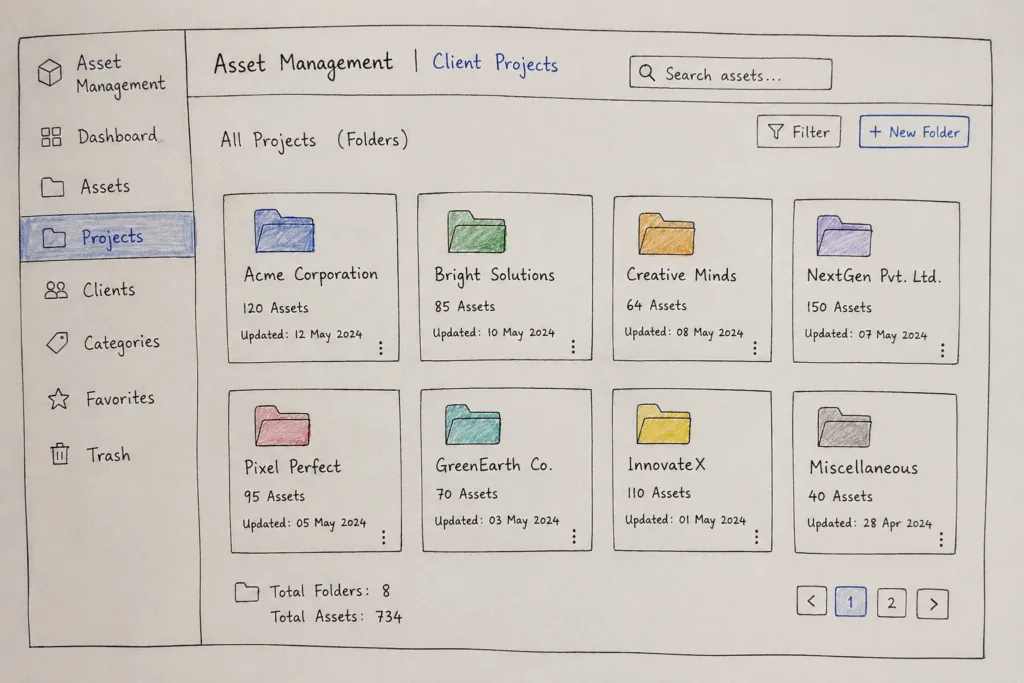
Let’s talk money and licensing, because this is where confusion festers. Runway operates on a credit system. Every generation, upscale, and export chews through credits. The free plan gives you a handful of one-time credits to test the waters, but they don’t refresh. It’s essentially a demo.
| Plan | Monthly Cost | Credits | Key Features | Commercial Use |
|---|---|---|---|---|
| Basic | £12 | 625 | 720p exports, Gen-3 & Gen-4 access | Yes |
| Standard | £28 | 1,500 | 1080p, priority queue, Act One | Yes |
| Unlimited | £76 | Unlimited (rate-limited) | 4K ProRes, advanced camera controls | Yes |
Credit usage is somewhat opaque. A 4-second Gen-4 clip at 1080p might cost 25 credits. An Act One generation runs significantly more. If you’re on the Standard plan, you can burn through 1,500 credits in a single afternoon of enthusiastic prompting. I recommend keeping an eye on the little meter; it is surprisingly easy to generate 40 variations of a shot and forget that each one counts.
Licensing Warning: You own the assets you create on paid plans. However, if your prompt includes a celebrity’s name or directly mimics a copyrighted character, Runway’s filters will likely block the generation. Even if it slips through, the output is a legal minefield. Stick to original character descriptors.
Runway vs The Competition: A Crowded Field
Runway is no longer the only game in town. Generative video AI has exploded with competitors. I’ve tested them all, and here’s the unvarnished truth about where Runway sits.
| Feature | Runway Gen-4 | Pika 2.0 | OpenAI Sora | Kling AI | Google Veo |
|---|---|---|---|---|---|
| Temporal Coherence | Excellent | Good | Excellent | Good | Very Good |
| Camera Control | Advanced | Basic | Moderate | Basic | Advanced |
| Lip Sync | Act One (Best) | None | Native | None | Native |
| Image to Video | Best in class | Good | Excellent | Very Good | Good |
| User Interface | Timeline-based | Simple | Chat-based | Web UI | Vertex AI |
Runway vs Pika: Pika has a delightful simplicity and often produces more “viral” looking social clips with its trendy filters. But for serious narrative work, Pika’s lack of precise camera controls and lip sync makes it a supplementary toy rather than a Runway replacement.
Runway vs Sora: OpenAI’s Sora produces stunningly realistic physics. Its shots often look more naturally lit than Runway’s. However, Sora’s current interface feels sterile compared to Runway’s edit suite. If you want to direct a shot (keyframe a zoom, then inpaint an object), Runway offers a tactile control surface Sora lacks. It’s the difference between a command line and a mixing desk.
Runway vs Google Veo & Kling: Veo is deeply integrated with Google’s ecosystem, which makes it convenient for Google Gemini users, but its generative quality lags slightly behind Gen-4 in terms of sharpness. Kling AI offers strong competition on pure image-to-video motion fluidity, and its pricing can be more aggressive for Chinese and Asian markets, but Runway’s Magic Tools suite keeps it ahead for professional post-production workflows.
The Hidden Tricks and Time-Saving Workflows
After hundreds of hours, you pick up things that aren’t in the official manual. Here are a few I rely on.
- Seed Gardening: Find a seed that generates a face you like. Use that same seed across multiple prompts with slight descriptor changes. The face will remain broadly consistent, creating a character across scenes.
- The “Pls Caption” Hack: Runway’s model responds better to descriptive, slightly flat, caption-style text than to poetic verse. Instead of “a breathtaking vista,” write “a wide-angle shot of a mountain range, clear sky, direct sunlight, shot on Arri Alexa.”
- Negative Prompt Weight: Use negative prompts aggressively. “No blur, no motion blur, no slow motion, no distorted hands, no text, no watermarks” saves you from many generation fails.
- Divide and Conquer: Don’t try to generate a complex 10-second shot in one go. Generate a 4-second establishing wide, then a 4-second close-up using Video Extend. It gives the AI less room to hallucinate nonsense.
For students and beginners looking to build a portfolio, I often suggest checking out my guide on the best AI tools for students. Runway can be overwhelming if you don’t understand the baseline of how generative models handle data.
Recommended Video Tutorial
There is one walkthrough that I think explains the Gen-4 interface better than most. I have embedded it below for reference.
Best Runway AI Prompts: 40+ Handcrafted Examples
A tool is only as good as the instructions you feed it. I’ve curated a selection of prompts that have consistently delivered professional results in my own client work. I’ve organised them by industry and style, and I’ll explain why each one works structurally.
Cinematic & Storytelling
- “Close-up on weathered hands rolling a cigarette, golden hour light, dust motes dancing in the air, shallow depth of field, 35mm anamorphic lens, 4k, raw footage style.” Why it works: The spec of lens and sensor type forces the model into a specific colour science rather than default “AI aesthetic.”
- “Low angle tracking shot following muddy boots walking through a wet forest floor, overcast sky, muted greens, subtle lens flare, atmospheric haze.” Why it works: Describing the movement as “tracking shot” gives Runway the camera direction it needs.
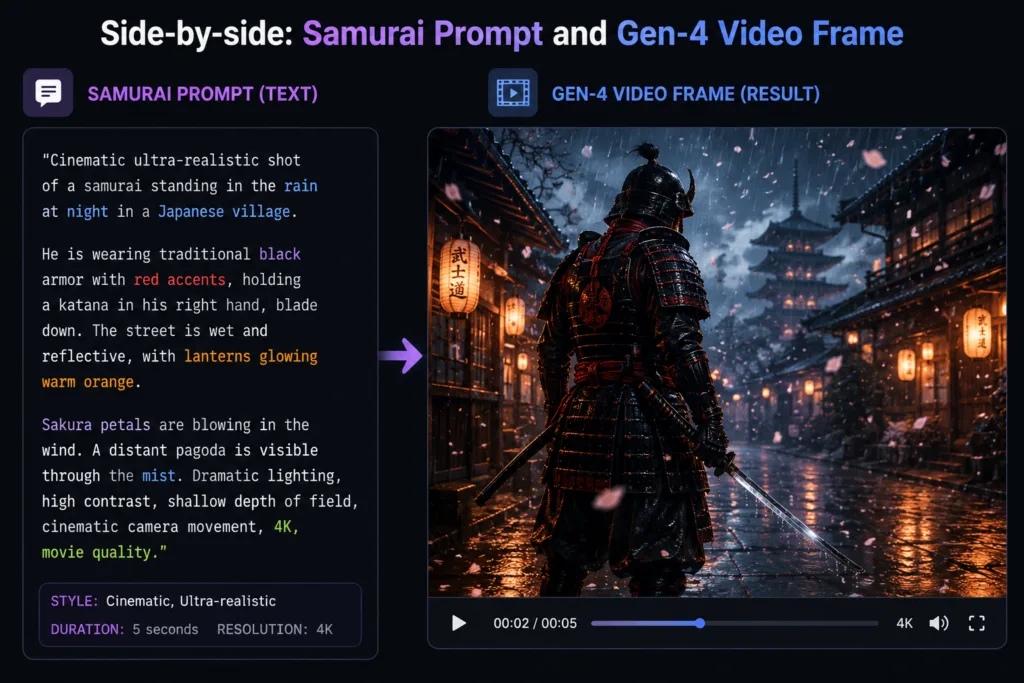
- “Extreme wide shot of a lone samurai standing under a cherry blossom tree, petals blowing horizontally, slow motion, misty morning, teal and orange colour grade.” Why it works: Mentioning the colour grade influences the output’s palette before generation.
Marketing & Advertising
- “Product photography shot of a matte black water bottle on a wet rocky surface, water splashing dynamically around it, studio lighting, rim light, 8k product video, clean background.”
- “A sleek silver sports car driving along a coastal road at sunset, aerial drone shot, smooth tracking, cinematic composition, lens flare from sun, motion blur on wheels.”
- “Macro shot of pouring golden honey over a stack of pancakes, steam rising, warm morning kitchen lighting, slow motion 120fps, shallow depth of field, delicious food commercial.”
Cyberpunk & Sci-Fi
- “Rain-slicked neon-lit alleyway in a futuristic Tokyo, reflections in puddles, volumetric fog, slow push-in dolly shot, cinematic cyberpunk, blue and magenta lighting.”
- “Inside a spaceship cockpit, blinking holographic interfaces, looking out at a nebula, subtle camera shake, found footage style, 80s sci-fi aesthetic.”
- “A sentient android awakening in a laboratory, close-up on an eye opening, intricate mechanical iris, dramatic lighting, sharp focus, high contrast.”
Fashion & Portrait
- “High fashion model walking down a runway, dramatic spotlight, fabric blowing in the wind, slow motion, black and white with selective red colour pop, editorial style.”
- “Extreme close-up of a model’s face, glitter freckles, soft fairy lights in the background, bokeh, editorial beauty, Vogue style, sharp detail on eyes.”
Food & Drink
- “Explosive splash of coffee beans falling into a black cup, high speed camera, dark moody background, volumetric lighting, epicurean photography.”
- “A chef tossing a flaming wok, fire erupting upwards, slow motion, smoky kitchen atmosphere, dynamic action shot, cinematic cooking show.”
Travel & Nature
- “Aerial drone shot of a turquoise river winding through a dense green jungle, sunny day, sharp shadows, birds flying below the camera, nature documentary style.”
- “Northern lights dancing over a snowy cabin in Iceland, reflection in a frozen lake, timelapse, starry sky, ultra high definition, serene.”
Real Estate & Architecture
- “Smooth interior fly-through of a modern minimalist living room, large windows showing ocean view, natural daylight, warm neutral tones, architectural visualization, 4k.”
- “Twilight exterior shot of a luxury villa, pool lights glowing, palm trees swaying gently, realistic architectural render, welcoming atmosphere.”
Fantasy & Animation
- “A small flame dragon flying through an enchanted forest, magic particles trailing, Unreal Engine 5 render, volumetric light rays, fantasy animation.”
- “Anime style, a schoolgirl standing on a rooftop at dusk, wind blowing her skirt and hair, distant city lights, Makoto Shinkai aesthetic, highly detailed.”
- “Claymation stop motion style, a little monster eating a giant sandwich, whimsical, detailed textures, Aardman style.”
Quick-Fire Pro Prompts
Ready-to-use cinematic prompts for AI video generation. Copy any prompt and adapt the camera movement, lighting, subject or visual style to match your creative direction.
“POV shot running through a wheat field at magic hour, handheld camera shake, warm colour palette.”
“A glass orb levitating above a hand, galaxy swirling inside, macro lens, sharp details, dark background.”
“A jazz musician playing saxophone in a smoky bar, silhouette lighting, rim light, deep shadows, moody.”
“A hot air balloon festival at sunrise, vibrant colours, reflections in a calm lake, wide angle panoramic pan.”
“Surfer riding a massive barrel wave, inside the wave POV, water droplets in air, slow motion, teal water.”
“A knight’s helmet resting on a sword, campfire flickering light, snow falling, quiet contemplation, dark fantasy.”
“Close up of a vintage typewriter, paper typing words on its own, dust particles, warm tungsten lamp light.”
“Futuristic city skyline, flying cars leaving light trails, heavy rain, Blade Runner aesthetic, slow pan up.”
“A delicate butterfly emerging from a cocoon, macro timelapse, morning dew, nature documentary quality.”
“A basketball player dunking, slow motion, sweat drops flying, dramatic arena lighting, intense atmosphere.”
“A red fox peeking through autumn leaves, soft morning light, shallow focus, peaceful woodland scene.”
“A glass of champagne being poured, bubbles rising, luxurious gold and black background, festive celebration.”
“An astronaut playing an electric guitar on the moon, earth in background, colourful nebula, surreal style.”
“A tranquil Japanese zen garden, raking sand patterns, water droplet falling from a bamboo fountain, calm.”
“Abstract geometric shapes flowing like liquid metal, iridescent colours, 3D render, seamless loop aesthetic.”
“A vintage steam train crossing a high stone bridge, thick white smoke, lush green valley below, cloudy sky.”
“A painter’s palette with vibrant oil paints, brush mixing colours, macro texture, artistic process.”
“A husky dog running through deep snow, happy expression, slow motion, winter wonderland, sharp fur details.”
“Melting clocks in a desert landscape, surreal Salvador Dali style, surrealism, wide shot.”
“A macro shot of a human eye with a galaxy reflecting in the iris, extreme detail, hyper realistic.”
If you’re looking for even more ways to integrate these into an editing suite, understanding the AI browser assistants that streamline this workflow can save you hours.
Limitations, Frustrations, and When to Walk Away
I refuse to end a review without detailing the moments Runway makes me want to throw my laptop. The tool is spectacular, but it is not omniscient.
Common Beginner Mistakes: Expecting 4K clarity from a 720p upscale is the number one disappointment. Runway’s native high-res is render-heavy. Also, generating scenes with complex, repeated text (like a book page) results in gibberish symbols. And faces in crowded scenes, especially in the background, still deform into nightmare fuel.
On the ethical front, the training data conversation is ongoing. Runway has stated they train on licensed and publicly available data, but the opacity around the exact datasets, common in this sector, frustrates some artists. Commercially, you are safe, but morally, the industry is still in flux. On data privacy and security, Runway is enterprise-grade for large contracts, but for the individual user, I wouldn’t upload your unreleased feature film script without reading the specific terms. That’s just basic digital hygiene for any cloud platform, by the way.
Performance-wise, rendering speed depends entirely on server load. On a Tuesday morning, a 4-second Gen-4 clip takes about 45 seconds. On a Sunday evening when every hobbyist is generating anime clips, it can take three minutes. The Unlimited plan offers a “priority” queue, but even that gets bogged down occasionally. For time-sensitive client work, this variability is a genuine headache.
There are also times when you should simply use a different tool. If you need exact character consistency across a 30-minute short, Runway will fight you. You’ll need a fine-tuned Stable Diffusion workflow with ControlNet and a lot of manual composting. Runway thrives on the short, the poetic, and the suggestive. It chokes on rigid, repetitive precision. This is where traditional AI content creation pipelines step in, much like the ones discussed in my Cursor AI deep dive for coding: specialization beats generalization.
Runway for Developers and the API
For developers looking to build on top of Runway, the API offers a direct line to the models. It’s REST-based, reasonably well-documented, and allows you to pipe generations directly into your app. I’ve seen successful integrations in gaming for dynamic texture generation and in architecture for real-time visualization updates. The cost via the API aligns roughly with the credit system, but you can automate it. If you’re building something complex, glancing at the GitHub Copilot guide might spark ideas on how to pair-code your video generation scripts.
Runway AI, in its current 2026 form, is a foundational tool. It hasn’t killed the camera, and it won’t kill the editor. It has simply filled a void that used to be occupied by expensive stock libraries and blank timelines. The difference between a professional output and a messy one still comes down to a human being writing a sharp prompt, making a precise edit, and knowing when to stop adding effects.
The last piece of advice I can offer is this: don’t hoard your credits waiting for the “perfect” moment. Use them. Experiment ruthlessly. Generate rubbish, figure out why it failed, and iterate. That is the only way to build a mental model of how the tool actually sees the world. And once you understand that, you stop being a button-pusher and start being a director.
Eleanor Vance is a technology journalist and video editor who has spent 15 years covering the intersection of software and film. She currently consults on AI integration for independent production companies.