

I remember the first time I watched GitHub Copilot AI autocomplete an entire function I was about to write. It was not just filling in a line; it understood the context of my React component, inferred the props, and suggested a handler that matched my naming convention. I sat back and stared at the screen. This was not autocomplete as I knew it. This was something genuinely different. Over the past several weeks, I have put GitHub Copilot through its paces across multiple editors, languages, and workflows. What follows is everything I have learned, including the bits the marketing pages leave out.
Key Takeaways
- GitHub Copilot AI is now deeply integrated across VS Code, Visual Studio, JetBrains IDEs, GitHub.com, and the command line.
- It is not just a code completer anymore; Copilot Chat, Agent Mode, and Copilot Workspace have transformed it into a full development companion.
- Pricing starts with a free tier and scales to enterprise plans with custom model fine-tuning and admin controls.
- Compared to Cursor AI and ChatGPT, GitHub Copilot holds its own for in-IDE workflows but has distinct trade-offs worth understanding.
- Productivity gains are real but uneven; Copilot excels at boilerplate, tests, and refactoring, yet struggles with novel algorithmic problems.
Table of Contents
- What is GitHub Copilot AI?
- A Brief History of GitHub Copilot
- How GitHub Copilot Actually Works
- Supported Languages and IDEs
- Key Features
- Real Examples of Using GitHub Copilot
- Who GitHub Copilot Is For
- GitHub Copilot Pricing
- Comparisons with Other AI Tools
- Privacy, Security, and Data Handling
- Best Practices and Prompting Tips
- Use Cases Across Languages and Frameworks
- My Honest Experience Using GitHub Copilot for Daily Development
- Is GitHub Copilot Worth Paying For in 2026?
- Buying Advice
- Expert Verdict
- Frequently Asked Questions
What is GitHub Copilot AI?
GitHub Copilot AI is an AI-powered coding assistant developed by GitHub and OpenAI. At its core, it is a large language model fine-tuned on publicly available code that plugs directly into your development environment. But calling it an autocomplete tool undersells what it has become. In 2026, GitHub Copilot is a multi-surface assistant that lives inside your IDE, your terminal, your pull requests, and even your browser on GitHub.com. It writes code, explains legacy functions, refactors messy blocks, generates tests, reviews pull requests, and, with Agent Mode, can autonomously work through multi-file tasks.
The assistant uses contextual signals from your open files, your project structure, and your conversation history to produce suggestions that feel surprisingly relevant. Sometimes they are eerily accurate. Other times they are confidently wrong. Learning when to trust it and when to double-check is half the skill of using it well.
A Brief History of GitHub Copilot
Who Created GitHub Copilot?
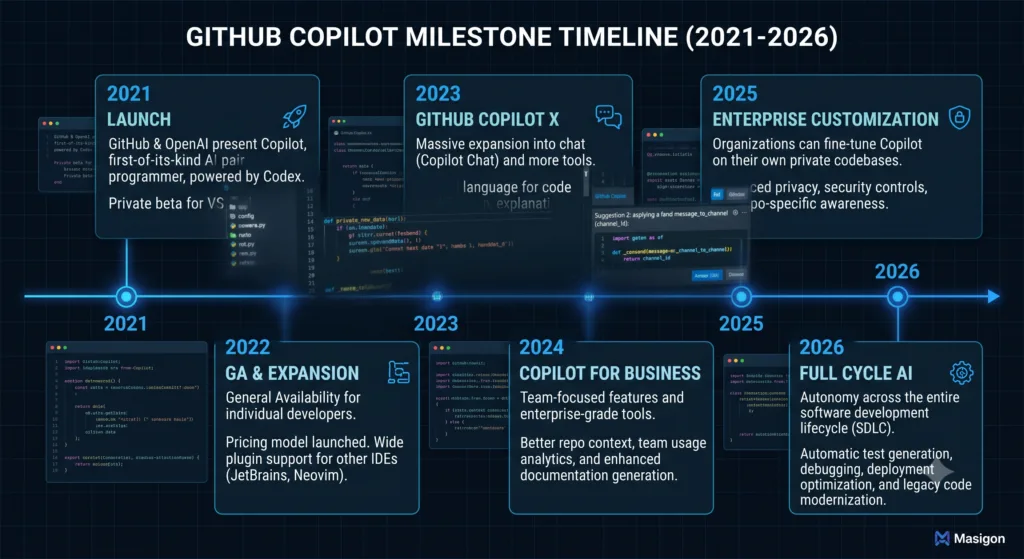
GitHub Copilot was created through a collaboration between GitHub (now owned by Microsoft) and OpenAI. It launched as a technical preview in June 2021 and became generally available in June 2022. The original model was based on OpenAI’s Codex, a descendant of GPT-3 fine-tuned specifically for code generation. Since then, the underlying models have evolved significantly. GitHub now uses a combination of models including updated versions of Codex and GPT-family models, with continuous improvements rolling out. Because GitHub updates Copilot regularly, the exact model versions shift over time, which is worth keeping in mind when reading older reviews.
How GitHub Copilot Actually Works
The Technology Behind GitHub Copilot
Under the bonnet, GitHub Copilot AI relies on transformer-based large language models that have been trained on a massive corpus of public code repositories, documentation, and natural language text. The training process teaches the model to predict the next token in a sequence, but the practical result is a system that can generate syntactically correct and semantically plausible code from natural language prompts or surrounding context.
If you are curious about the broader mechanics behind these systems, How AI Tools Work: What Actually Happens Behind the Screen offers a clear, non-marketing explanation of the transformer architecture and inference process that powers tools like this one.
How Context Awareness Works
Context awareness is what separates GitHub Copilot from a simple code generator. When you start typing, Copilot gathers signals from your current file, other open tabs, the file path, project metadata, and your recent interaction history. It uses this to infer what you are building. In a Next.js project, for instance, it recognises the framework conventions and adapts its suggestions accordingly. This contextual stitching is imperfect but improving steadily.
Did You Know? GitHub Copilot can use your neighbouring files as implicit context even if you never mention them. Keeping related files open in adjacent tabs often improves suggestion quality noticeably.
Supported Languages and IDEs
Supported Programming Languages
GitHub Copilot AI works with virtually any programming language that appears in public repositories. That said, its performance varies considerably by language. Languages with abundant open-source representation like JavaScript, TypeScript, Python, Java, C#, Go, and Rust receive noticeably stronger suggestions than niche or proprietary languages. Below is a summary of support quality based on my testing and community consensus.
| Language | Support Quality | Notes |
|---|---|---|
| JavaScript | Excellent | Strong across frameworks; one of the best-supported languages. |
| TypeScript | Excellent | Type inference and interface generation work impressively well. |
| Python | Excellent | Great for data science, scripting, and web development. |
| Java | Very Good | Strong in Spring Boot and enterprise patterns. |
| C# | Very Good | Excellent in Visual Studio with deep .NET awareness. |
| Go | Good | Handles idiomatic patterns well; struggles with complex concurrency occasionally. |
| Rust | Good | Borrow checker awareness is improving; still makes ownership mistakes. |
| PHP | Good | Laravel and Symfony support are solid. |
| Ruby | Good | Rails conventions are well understood. |
Supported IDEs
GitHub Copilot AI is available across a broad range of development environments. Integration depth varies, with VS Code receiving the most attention from GitHub’s engineering team. Here is how the major IDEs stack up.
| IDE | Integration Quality | Key Features Supported |
|---|---|---|
| Visual Studio Code | Excellent | Full Chat, Agent Mode, inline suggestions, commit messages, CLI integration. |
| Visual Studio | Very Good | Inline completions, Chat, limited Agent Mode; tight .NET integration. |
| JetBrains IDEs | Very Good | Works across IntelliJ, PyCharm, WebStorm, Rider; Chat and completions supported. |
| GitHub.com | Good | Copilot Workspace, PR reviews, code explanations on the web. |
| Command Line (CLI) | Good | Natural language to shell commands; available via GitHub CLI extension. |
GitHub Copilot in VS Code
VS Code remains the flagship experience. Inline suggestions appear as ghost text as you type, and pressing Tab accepts them. The Chat view, accessible via Ctrl+I or the side panel, handles questions about your codebase, generates entire files, and with Agent Mode enabled, can create, edit, and delete files across your project autonomously. The integration feels native, not bolted on.
GitHub Copilot in JetBrains IDEs
I tested Copilot extensively in PyCharm and WebStorm. The plugin installs cleanly and suggestions appear inline just as they do in VS Code. The Chat panel is slightly less polished but fully functional. One quirk: Copilot sometimes conflicts with JetBrains’ own AI features, so you may need to disable one to avoid suggestion overlap.
GitHub Copilot on GitHub.com and CLI
On GitHub.com, Copilot can explain code snippets, suggest fixes for issues, and power Copilot Workspace, a browser-based environment where you can describe a feature in natural language and watch Copilot plan and implement it across multiple files. The CLI extension turns natural language into shell commands, which is genuinely useful for remembering obscure flags on tools like tar or find.
GitHub Copilot Agent Mode and Workspace
Agent Mode is the most significant evolution of GitHub Copilot AI since its launch. Instead of waiting for you to prompt each change, Agent Mode can work through a multi-step task autonomously, reading files, making edits, running terminal commands, and iterating based on errors. Copilot Workspace extends this idea to the browser, providing a structured planning environment where Copilot proposes a plan, shows you the diff, and lets you approve or adjust before applying changes. It is still maturing, and I would not trust it unsupervised on anything important, but it is clearly aimed at doing more of the work without you prompting every single step.
GitHub Copilot Extensions
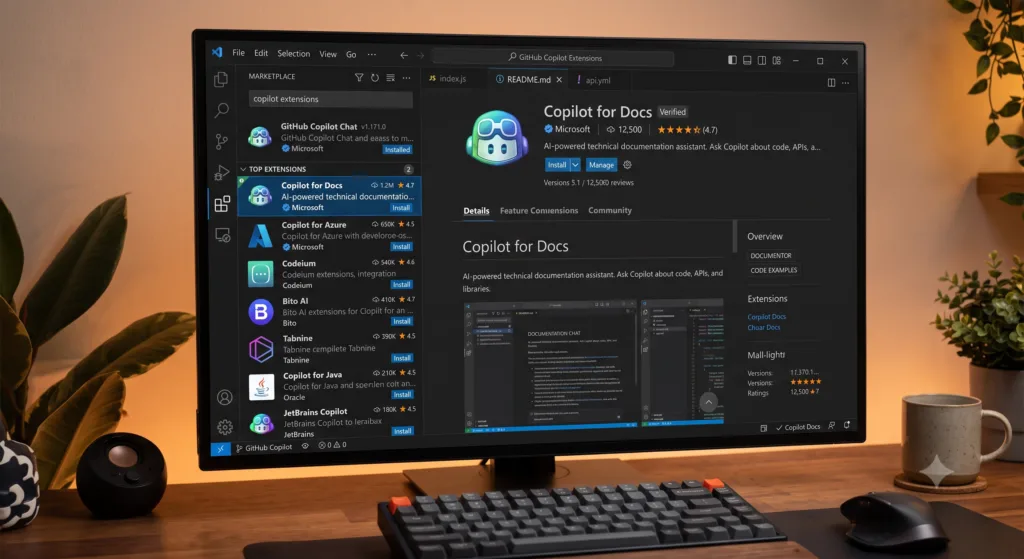
Extensions allow third-party tools to plug into the Copilot Chat interface. You can query databases, interact with APIs, or pull in documentation from external sources without leaving your editor. The ecosystem is young but growing, and organisations with custom internal tools are starting to build their own extensions. Extensions are what turn Copilot from a single tool into something you can plug your own stack into.
Key Features
| Feature | Description | Availability |
|---|---|---|
| Real-Time Code Completion | Ghost text suggestions as you type, from single lines to whole functions. | All IDEs |
| Code Generation | Generate entire files or modules from natural language prompts. | Chat, Agent Mode |
| Code Explanation | Highlight code and ask Copilot to explain what it does in plain English. | Chat, GitHub.com |
| Code Refactoring | Suggest improvements for readability, performance, or pattern adherence. | Chat, Agent Mode |
| Debugging Assistance | Analyse error messages and stack traces, then propose fixes. | Chat |
| Test Generation | Write unit tests and integration tests for existing functions. | Chat, inline |
| Documentation Generation | Auto-generate docstrings, README sections, and inline comments. | Chat, inline |
| Commit Messages | Suggest meaningful commit messages based on staged changes. | VS Code, JetBrains |
| Pull Request Reviews | Summarise PR changes and suggest improvements. | GitHub.com |
| Security Suggestions | Flag potential vulnerabilities in generated or existing code. | All surfaces |
| Terminal Assistance | Convert natural language to shell commands via CLI. | GitHub CLI |
Pro Tip: Use Copilot Chat with the /explain and /fix slash commands. They are shortcuts that save time and often produce more focused responses than freeform prompts.
Real Examples of Using GitHub Copilot
Let me walk you through a typical morning. I open my Next.js project and need to add a new API route for user preferences. I type a comment describing the route, and Copilot generates the handler, complete with error handling and TypeScript types. I tweak two lines, then ask Copilot Chat to write unit tests. It produces a Jest test file covering the happy path, edge cases, and error states. I accept most of it, adjust the mock data, and commit. For the commit message, Copilot suggests something descriptive based on my diff. I approve it. Then I open a pull request and Copilot summarises the changes for my team. This is not a hypothetical; it is a real workflow I have repeated dozens of times now.
Who GitHub Copilot Is For
GitHub Copilot for Beginners
If you are learning to code, Copilot can be an excellent tutor. It explains unfamiliar syntax, suggests idiomatic patterns, and reduces the friction of not knowing every library method. The risk is over-reliance. Beginners who accept every suggestion without understanding it may build fragile mental models. Use it as a learning accelerator, not a crutch. For students specifically, Best AI Tools for Students: 18 Apps I Actually Use to Study Smarter covers Copilot alongside other genuinely useful study aids.
GitHub Copilot for Professional Developers
For seasoned developers, the value proposition shifts. Copilot eliminates boilerplate, reduces context-switching to look up documentation, and handles tedious refactoring tasks. The productivity gain is not in writing novel algorithms faster; it is in spending less mental energy on the mechanical parts of coding. Over a week, those saved minutes compound significantly.
GitHub Copilot for Teams, Business, and Enterprise
GitHub Copilot Business adds licence management, organisation-wide policy controls, and the ability to exclude specific files from Copilot’s context. Copilot Enterprise goes further with custom model fine-tuning on your organisation’s codebase, deeper analytics, and integration with your internal knowledge bases. For regulated industries, the enterprise tier also offers stronger data residency guarantees. Large teams considering an AI rollout should also explore the broader landscape; The Ultimate Guide to AI Tools (2026) provides useful context on how Copilot fits into a wider AI adoption strategy.
GitHub Copilot Pricing
| Plan | Price | Key Inclusions | Best For |
|---|---|---|---|
| Free | £0/month | Limited completions, Chat access, public repository support. | Students, hobbyists, open-source contributors. |
| Pro | £8/month (individual) | Unlimited completions, full Chat, Agent Mode, all IDEs, CLI. | Freelancers, individual developers. |
| Business | £16/user/month | Everything in Pro plus admin controls, policy management, org-wide settings. | Small to mid-sized development teams. |
| Enterprise | £32/user/month | Everything in Business plus custom model fine-tuning, data residency, analytics, knowledge base integration. | Large organisations, regulated industries. |
Comparisons with Other AI Tools
GitHub Copilot vs Cursor AI
Cursor AI has made waves as an AI-first code editor built on VS Code’s foundation. It offers a more aggressive, agentic approach to code generation and editing. For a deeper dive into Cursor specifically, Cursor AI: The Complete Guide (2026) covers everything you need to know. In practice, Copilot feels more polished and reliable for everyday completions, while Cursor takes bigger swings with its inline editing and multi-file orchestration. If you want a stable assistant that rarely surprises you, Copilot is the safer bet. If you prefer an editor that treats AI as a first-class citizen throughout the entire experience, Cursor deserves a look.
| Feature | GitHub Copilot AI | Cursor AI |
|---|---|---|
| Editor | Plugin for VS Code, JetBrains, Visual Studio | Standalone editor (VS Code fork) |
| Inline Completions | Excellent, low-latency ghost text | Good, with more aggressive multi-line predictions |
| Agentic Editing | Agent Mode (maturing) | Inline editing and multi-file orchestration (more mature) |
| Ecosystem | Extensions, GitHub integration, PR reviews | Limited to editor; no native GitHub integration |
| Pricing | Free to £32/user/month | Free tier available; Pro from £16/month |
GitHub Copilot vs ChatGPT
ChatGPT is a general-purpose conversational AI that happens to be very good at code (I have written a fuller Complete ChatGPT Guide for Beginners if you want the full picture). The key difference is integration depth. ChatGPT requires you to copy and paste code between windows. Copilot lives inside your editor and understands your project. For quick one-off questions or learning new concepts, ChatGPT is excellent. For sustained development work, Copilot’s contextual awareness gives it a clear advantage. Many developers use both: ChatGPT for planning and exploration, Copilot for execution.
| Aspect | GitHub Copilot AI | ChatGPT |
|---|---|---|
| Integration | Deep IDE and GitHub integration | Web and mobile app; no IDE integration |
| Context | Project files, structure, history | Conversation window only |
| Code Execution | Via terminal in IDE | Limited sandboxed execution |
| Best Use | Active development, refactoring, testing | Learning, planning, code review, architecture discussions |
GitHub Copilot vs Microsoft Copilot
Microsoft Copilot is a different thing entirely: a suite of AI assistants embedded across Microsoft 365, Windows, and Azure (I go into it properly in Microsoft Copilot: The Complete Guide (2026)). It is not a coding tool per se, though it can generate code snippets. Microsoft Copilot helps with emails, spreadsheets, presentations, and cloud management. GitHub Copilot AI is purpose-built for software development. The two complement each other: you might use Microsoft Copilot to draft a project proposal and GitHub Copilot to build the software described in it.
| Aspect | GitHub Copilot AI | Microsoft Copilot |
|---|---|---|
| Primary Domain | Software development | Office productivity, Windows, Azure |
| Environment | IDEs, GitHub.com, CLI | Microsoft 365 apps, Windows, Edge, Azure portal |
| Code Generation | Core feature; deeply integrated | Ancillary; basic snippets and explanations |
GitHub Copilot vs Google Gemini
Google Gemini is Google’s multimodal AI model family (see Google Gemini Explained: Features, Models, Pricing & How to Use It for the full rundown). It can generate code, but it is not positioned as a dedicated coding assistant. Gemini’s strength lies in its breadth; it handles text, images, audio, and video. For pure coding tasks, Copilot’s IDE integration and project awareness give it an edge. If your work spans multiple media types, Gemini may be more versatile.
| Aspect | GitHub Copilot AI | Google Gemini |
|---|---|---|
| Focus | Code generation and development | Multimodal general-purpose AI |
| IDE Integration | Native across major IDEs | Limited; primarily via API or Google Cloud |
| Multimodal | Text only | Text, images, audio, video |
GitHub Copilot vs Amazon Bedrock
Amazon Bedrock, covered in Amazon Bedrock: The Complete 2026 Guide to AWS Generative AI, is not a coding assistant but a managed service for building and deploying generative AI applications. Comparing them directly is a bit apples-to-oranges. Bedrock is for teams building AI features into their own products. Copilot is a ready-to-use tool for developers writing software. If you are evaluating AI infrastructure for your organisation, Bedrock is relevant. If you want to write code faster today, Copilot is what you need.
| Aspect | GitHub Copilot AI | Amazon Bedrock |
|---|---|---|
| Type | End-user coding assistant | AI infrastructure platform |
| User | Software developers | AI engineers and application builders |
| Customisation | Limited to prompt engineering | Full model selection, fine-tuning, and deployment control |
Strengths and Weaknesses of GitHub Copilot AI
| Pros | Cons |
|---|---|
| Seamless IDE integration with minimal friction | Can generate plausible-looking but incorrect code |
| Excellent for boilerplate, tests, and refactoring | Struggles with novel algorithmic problems |
| Multi-surface support (IDE, web, CLI, PRs) | Agent Mode is still maturing and can make unexpected changes |
| Free tier available for students and open-source | Enterprise pricing may be steep for smaller teams |
| Strong ecosystem with extensions and GitHub integration | Suggestions can feel repetitive across similar contexts |
| Regular updates and model improvements | Occasional latency spikes during peak usage |
Privacy, Security, and Data Handling
GitHub states that Copilot does not train on private repositories. For individual plans, snippets of your code may be retained for model improvement unless you opt out. Business and Enterprise plans offer stronger guarantees, including zero code retention for training purposes. Copilot can process your private code to generate suggestions, but GitHub asserts this data is not stored or used for model training at those tiers. Whether you trust these assurances depends on your organisation’s risk tolerance. For regulated industries, the Enterprise plan with custom data residency is likely the minimum acceptable option.
Expert Insight: Treat Copilot like a junior developer who has read every public repository but never worked inside your company. It is immensely helpful, but code review remains essential, especially for security-sensitive paths.
Best Practices and Prompting Tips
Getting the most out of GitHub Copilot AI requires a shift in how you communicate intent. Vague comments produce vague code. Specific comments with examples produce far better results. Here are a few habits I have developed:
- Write descriptive function names. Copilot uses function signatures heavily for context.
- Keep related files open. This gives Copilot more contextual clues about your architecture.
- Use slash commands in Chat.
/explain,/fix,/tests, and/doctrigger optimised prompts. - Review every suggestion. Copilot can introduce subtle bugs, especially with off-by-one errors or incorrect API usage.
- Iterate on prompts. If the first suggestion is off, refine your comment and try again.
Common Mistake: Accepting a Copilot suggestion without reading it because it looks approximately right. Always read the generated code line by line. Copilot does not understand your intent; it predicts tokens based on statistical patterns.
Use Cases Across Languages and Frameworks
GitHub Copilot AI adapts surprisingly well to different stacks. In React and Next.js projects, it suggests component patterns, hooks, and API routes that follow current conventions. In Python data science workflows, it generates pandas transformations and matplotlib visualisations from natural language descriptions. For Java Spring Boot applications, it scaffolds controllers, services, and repository layers with appropriate annotations. Go developers will find it handles interfaces and error handling idiomatically. DevOps engineers can use the CLI integration to generate docker and kubectl commands without memorising every flag.
Coding is only one corner of this. If you are curious where else the same underlying models are showing up, I have written about AI in SEO: How to Build a Modern Content Strategy, AI Browser Assistants: The Next Step After Chatbots, and, for research work specifically, Perplexity AI Review: The Search Engine That Actually Cites Its Sources.
My Honest Experience Using GitHub Copilot for Daily Development
After weeks of using GitHub Copilot AI as my primary coding companion, I have settled into a rhythm. It feels like pair programming with someone who is occasionally brilliant and occasionally needs close supervision. On a good day, Copilot saves me an hour or more by handling boilerplate, generating tests I would have put off writing, and explaining legacy code I did not want to decipher manually. On a bad day, it suggests a plausible but incorrect API call that takes ten minutes to debug. Net-net, the time saved dramatically outweighs the time lost.
The feature I use most is inline completion, simply because it requires no deliberate action. Ghost text appears, and I accept or ignore it with a single keystroke. Chat is my second most-used feature, particularly for explaining unfamiliar codebases and generating test suites. Agent Mode I use sparingly; it is powerful but still makes multi-file changes that require careful review. Copilot Workspace I have used for prototyping new features, and while it is not yet ready for production-grade output without human oversight, the trajectory is impressive.
Is GitHub Copilot Worth Paying For in 2026?
For professional developers, the Pro plan at £8 per month pays for itself within the first hour of saved time each month. If you write code for a living, the answer is an easy yes. For students and hobbyists, the free tier is generous enough to be genuinely useful. For teams, the Business plan adds administrative controls that make adoption manageable without chaos. The Enterprise tier is harder to justify unless you have specific compliance requirements or want custom model fine-tuning, which is still an emerging capability. My balanced recommendation: start with the free tier, upgrade to Pro once you feel the constraint of limited completions, and evaluate Business or Enterprise only when your organisation has clear governance needs.
Buying Advice
If you are an individual developer, subscribe to the Pro plan for a month and treat it as an experiment. Use it actively across your normal workflow for two weeks before judging. The first few days can feel magical; the real test is whether the utility persists once the novelty fades. For team leads, run a pilot with a small group before rolling out organisation-wide. Pay attention to how different experience levels interact with Copilot. Junior developers may need guidance on when to trust suggestions, while senior developers may benefit more from Chat and Agent Mode than from inline completions.
Expert Verdict
GitHub Copilot AI is not perfect, and it is not a replacement for a skilled software engineer. What it is, however, is the AI coding assistant I would recommend first, mostly because of how deep the GitHub integration runs; that is hard for a standalone tool to match. If you write code regularly and have not tried it yet, you are leaving productivity on the table. Just remember: the Tab key accepts suggestions, but your brain should always have the final say.
Frequently Asked Questions
What exactly is GitHub Copilot AI and how does it differ from regular autocomplete?
GitHub Copilot AI is an AI-powered coding assistant that uses large language models to generate context-aware code suggestions. Unlike traditional autocomplete, which simply predicts symbols or previously used code snippets, Copilot understands natural language prompts, project context, and surrounding code. It can generate complete functions, classes, tests, documentation, and even suggest architectural improvements instead of merely completing the next word or variable.
Is GitHub Copilot free to use?
Yes. GitHub Copilot offers a free tier with limited code completions, Copilot Chat, and support for public repositories. Developers who need unlimited completions, Agent Mode, and additional premium features can subscribe to the Pro plan, which costs around £8 per month. Students, teachers, and eligible open-source maintainers may also receive free access through GitHub’s education and community programmes.
Which IDEs does GitHub Copilot support?
GitHub Copilot works with most popular development environments, including Visual Studio Code, Visual Studio, and JetBrains IDEs such as IntelliJ IDEA, PyCharm, WebStorm, Rider, GoLand, CLion, and PhpStorm. It is also available on GitHub.com and through the GitHub CLI, although Visual Studio Code continues to receive the fastest updates and deepest integration.
Can GitHub Copilot see my private code?
Copilot temporarily processes your code to generate relevant suggestions. GitHub states that Business and Enterprise customers’ private code is not used for model training. Individual users can also disable code snippet collection through their account settings. Organisations working with highly sensitive repositories should consider the Enterprise plan, which offers stronger privacy controls and additional compliance features.
Does GitHub Copilot work offline?
No. GitHub Copilot requires an active internet connection because its AI models run on cloud infrastructure. Every suggestion is generated remotely and delivered back to your editor. Although there is currently no offline mode, response times are generally fast enough that suggestions feel almost instantaneous on a reliable internet connection.
How accurate is GitHub Copilot’s code?
Accuracy depends on the programming language, task complexity, and available context. Copilot performs exceptionally well when generating boilerplate, API integrations, unit tests, and common programming patterns. However, complex algorithms, niche frameworks, and business-specific logic often require manual corrections. Developers should always review, test, and validate AI-generated code before deploying it.
What is GitHub Copilot Agent Mode?
Agent Mode transforms Copilot from a code suggestion tool into an autonomous coding assistant. It can analyse an entire codebase, edit multiple files, execute terminal commands, run tests, identify errors, and iterate until a requested task is completed. Developers remain in control throughout the process and can review or interrupt its actions whenever necessary.
How does GitHub Copilot compare to Cursor AI?
Both tools are among the best AI coding assistants available. GitHub Copilot integrates with existing IDEs and the wider GitHub ecosystem, making it ideal for developers who prefer familiar workflows. Cursor AI is a dedicated AI-first editor based on Visual Studio Code and focuses heavily on multi-file editing and autonomous development. Copilot generally feels more polished for everyday programming, while Cursor offers a more experimental AI-centric experience.
Can I use GitHub Copilot for languages like Rust or Go?
Yes. GitHub Copilot provides strong support for Rust, Go, Python, JavaScript, TypeScript, Java, C#, C++, PHP, Ruby, Kotlin, Swift, and many other programming languages. Rust developers benefit from the compiler’s strict borrow checker, while Go’s straightforward syntax allows Copilot to produce particularly reliable and idiomatic suggestions.
Does GitHub Copilot generate secure code?
Not always. Although GitHub has introduced security filters to detect common issues such as hardcoded credentials and certain vulnerability patterns, AI-generated code can still contain security flaws. Developers should review every suggestion carefully and continue using code reviews, static analysis tools, dependency scanners, and security testing as part of their development workflow.
Is GitHub Copilot suitable for beginners learning to code?
Yes, provided it is used responsibly. Copilot can explain unfamiliar concepts, generate examples, suggest best practices, and reduce time spent fixing syntax errors. However, beginners should avoid accepting suggestions blindly. Understanding every generated line of code is essential for building strong programming fundamentals rather than relying entirely on AI assistance.
Can I customise GitHub Copilot’s behaviour?
Yes, although customisation options remain relatively limited for individual users. Developers can improve suggestions by writing clearer prompts, adding descriptive comments, and adjusting available Copilot settings. Enterprise customers gain access to additional capabilities such as organisation-specific customisation and AI models tailored to internal coding standards and APIs.
What happens if GitHub Copilot suggests copyrighted code?
Copyright concerns have been discussed since Copilot’s launch. GitHub provides an optional duplication detection filter that blocks suggestions closely matching publicly available source code. Enabling this feature is strongly recommended for commercial software projects to reduce the likelihood of incorporating copyrighted material into proprietary codebases.
Does GitHub Copilot work with Jupyter Notebooks?
Yes. GitHub Copilot integrates with Jupyter Notebooks through the Visual Studio Code extension. It can generate Python code cells, suggest data analysis techniques, create visualisation scripts, write markdown explanations, and assist with machine learning workflows, making it especially useful for data scientists and AI engineers.
How often does GitHub update Copilot?
GitHub continuously improves Copilot through regular model updates, performance enhancements, bug fixes, and new features. Major capabilities such as Agent Mode, Copilot Workspace, and enhanced chat experiences have been introduced gradually. Compared with its original 2022 release, GitHub Copilot in 2026 is significantly more capable and continues to evolve rapidly.
Can I use GitHub Copilot for documentation writing?
Absolutely. GitHub Copilot is highly effective for generating documentation, including docstrings, inline comments, README files, API documentation, release notes, and markdown guides. It can also summarise existing code into readable documentation, providing developers with a solid first draft that can be refined before publication.
Conclusion
GitHub Copilot AI has matured from an impressive tech demo into an essential tool that I genuinely miss when it is not available. It is not magic, and it will not write your entire application while you sip coffee. What it will do is remove the friction from countless small decisions throughout your day: what to name this variable, how to structure that loop, which assertion to use in this test, what this cryptic error message actually means. Those micro-savings compound into something significant. If you approach Copilot as a capable assistant rather than an autonomous engineer, you will find it earns its place in your toolkit quickly and convincingly.