

If you have opened Windows, used Microsoft 365, or written a line of code in Visual Studio lately, you have almost certainly bumped into Microsoft Copilot. It is the AI assistant that Microsoft has stitched into practically every product they make, from Word and Excel to Azure and GitHub. But with so many flavours, prices, and capabilities, it is easy to lose track of what Copilot actually does, where it excels, and where it still trips over its own feet. I have spent months testing the different Copilot experiences across Windows, the web, Microsoft 365 apps, and GitHub. This guide distils everything I have learned into one practical, no-nonsense resource.
Copilot builds on the idea we covered in AI Browser Assistants: The Next Step After Chatbots, but takes it further. Instead of a standalone chat window, it sits inside the apps you already use, which changes how you end up relying on it day to day.
What exactly is Microsoft Copilot?
Think of Copilot as a multi-layered AI companion. At its simplest, it is a generative AI chatbot that can answer questions, summarise text, and create images. But that only scratches the surface. The real magic appears when it plugs into your work data. Copilot inside Microsoft 365 apps can read your emails, reference your calendar, pull facts from a report you wrote last month, and use all that context to give you genuinely helpful answers. It behaves less like a search box and more like a colleague who has actually read everything you have shared with them.
Microsoft has built Copilot into Windows, Edge, Bing, the Microsoft 365 suite, Teams, Power Platform, and GitHub. Each flavour shares the same underlying AI foundation but is tuned for a specific job. The experience in Word is nothing like the one in Excel, and that is intentional.
How Microsoft Copilot works under the hood
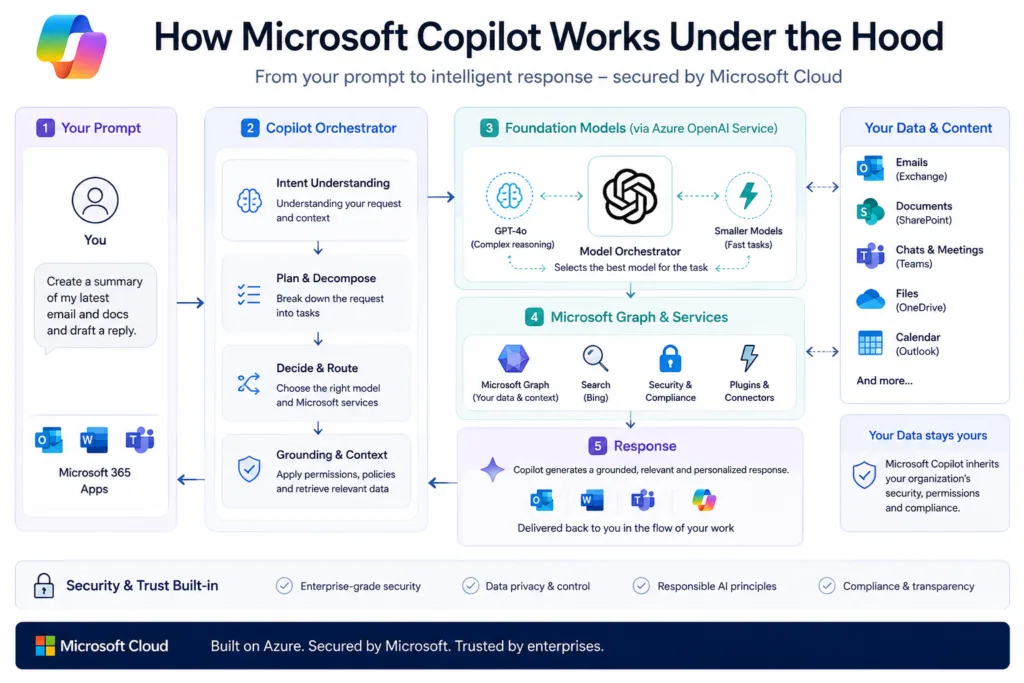
Behind the scenes, Copilot leans on large language models, mostly from OpenAI, hosted on Azure. The exact model mix depends on the task. For complex reasoning, you often get GPT-4o; for faster, lightweight tasks, a smaller, optimised model might handle the request. Microsoft also layers on their own orchestrator, which decides how to break down a prompt, which services to call, and how to ground the answer in trustworthy data.
If you want to understand the technical underpinnings of generative AI, our guide to How AI Tools Work: What Actually Happens Behind the Screen breaks it all down. The short version is that Copilot turns your natural language into actions. When you ask it to summarise a Teams meeting, it fetches the transcript, runs it through the model, and returns bullet points, all while respecting the permissions you already have.
Grounding is the secret sauce. Copilot does not just trust the model’s memory. It retrieves relevant information from the Microsoft Graph, your organisation’s SharePoint, your OneDrive, and your emails, then feeds that as context to the model. This dramatically reduces hallucinations, but it does not eliminate them entirely. I have still seen it confidently cite meeting notes that did not exist, so a healthy scepticism remains essential.
A quick look back
Copilot first appeared in early 2023 as “Bing Chat,” a conversational search engine built on a then-new OpenAI model. Microsoft rebranded it to Copilot later that year and rapidly expanded it across the ecosystem. By 2024, Copilot for Microsoft 365 became generally available, and GitHub Copilot had already been helping developers for over a year. The 2025 updates brought deeper Windows integration and the Copilot Pro subscription for individuals. Now, in 2026, it is hard to find a Microsoft product that does not have a Copilot button.
The models powering Copilot
Microsoft does not shout about every model change, but you can feel the evolution. Most interactions today run on a combination of GPT-4o and custom fine-tuned models. The image generation tool leans on DALL-E 3, and some analytical tasks in Excel may tap into specialised reasoning models. One welcome change is that the free tier now often uses a capable, fast model that feels snappy, while paid tiers get priority access to the largest models during peak times.
For a deeper dive into the assistant that shares much of this DNA, see our Complete ChatGPT Guide for Beginners. The two products are cousins, not clones, and that relationship matters when you are deciding which to use.
Copilot in Windows: your everyday AI sidekick
The Windows Copilot sits right on your taskbar. You can ask it to change system settings, summarise a web page in Edge, or crank out a quick email draft. It is reasonably handy for toggling dark mode or finding a buried setting without rummaging through menus. But I have found it still stumbles with ambiguous requests. If you say “make my computer faster,” it might point you to storage sense rather than actually closing background apps. It is a friendly helper, not yet a system administrator.
Copilot in Microsoft 365: where productivity really shifts
This is the heart of the Copilot story. When you open Word, Excel, PowerPoint, Outlook, or Teams with an active Copilot licence, the AI lives inside the app, not beside it. It can read the document you are working on and suggest next steps. This integration is the main reason businesses are paying attention.
Word: from blank page to polished draft
In Word, Copilot can generate entire sections from a short prompt, rephrase clunky sentences, and summarise long reports in seconds. I have used it to turn a sprawling 20-page research note into a two-page executive summary that actually sounded like me. The catch is that you must review everything. Occasionally it invents statistics or misattributes a source, so treat it as a smart intern, not the final author. When I need to build a content strategy around AI-assisted writing, I often revisit the principles in AI in SEO: How to Build a Modern Content Strategy to keep the human voice central.
Excel: automating the grind
Excel’s Copilot can write formulas from plain English, suggest PivotTables, and even generate charts. If you ask, “show me monthly sales trends by region and highlight the top performer,” it will do the heavy lifting. It is not yet a full data analyst; I once watched it confidently propose a formula that would have divided by zero. But for routine tasks, it saves a remarkable amount of time. You still need to understand what the formula does, otherwise you will not spot the errors.
PowerPoint: from blank deck to boardroom ready
Point Copilot at a Word document, and it will produce a complete slide deck with speaker notes, a consistent design, and relevant stock imagery. You can then tweak slides with commands like “make this slide more visual” or “add a timeline.” For last-minute presentations, it is a lifesaver. The results are not always creative, but they give you an 80% head start.
Outlook: taming the inbox
Copilot in Outlook drafts replies, summarises long email threads, and can even coach your tone. I have found the meeting scheduling prompts genuinely useful. You can type “set up a 30-minute catch-up with Sarah next Tuesday morning,” and it will check calendars and send the invite. The email summaries sometimes miss nuance, especially in sarcasm-laden threads, but for quick triage, they work well.
Teams: meeting intelligence that listens
During a Teams call, Copilot can take real-time notes, capture action items, and answer questions about what was said, even if you joined late. After the meeting, it produces a tidy summary with a recording and transcript. It is one of the most polished experiences, although privacy-sensitive organisations will want to double-check recording policies.
GitHub Copilot: the developer’s pair programmer
GitHub Copilot plugs into your IDE and suggests code as you type. It understands context from neighbouring files and can generate entire functions from a comment. I have watched it write a REST API endpoint in seconds that would have taken me 20 minutes to scaffold. It is strongest in popular languages like Python, JavaScript, and TypeScript, but it knows dozens more. The chat interface inside VS Code lets you ask questions about your codebase, debug errors, and even explain legacy code. It sometimes suggests deprecated packages, so code review is non-negotiable. Still, for developers, this is arguably the most mature Copilot experience.
Copilot Pro and the paid tiers
Copilot Pro costs roughly £19 per user per month and requires a Microsoft 365 Personal or Family subscription. It unlocks AI features inside the desktop Office apps, gives you priority model access, and includes higher-resolution image generation. For an individual who lives in Word and Excel, it can easily justify the cost. There is also a Copilot Pro plan for the web that adds longer conversations and enhanced creativity tools even without an existing 365 subscription, though it lacks the app integrations.
Copilot for Enterprise and Copilot Studio
Organisations can buy Copilot for Microsoft 365 at £24.70 per user per month (annual commitment). This adds enterprise-grade security, data isolation, and full Microsoft Graph grounding. Copilot Studio then lets you extend the AI with custom agents and connectors to third-party data sources like SAP or ServiceNow. If you are evaluating enterprise AI platforms, the cloud infrastructure matters. Microsoft’s approach runs on Azure, while AWS offers its own generative AI service. We cover that landscape in our Amazon Bedrock: The Complete 2026 Guide to AWS Generative AI, which is helpful for comparison.
Where Copilot really shines
Knowledge workers who spend half their day in Microsoft 365 can cut real time off weekly busywork: email chains get summarised, routine reports get a first draft, and presentations come together faster. Students and researchers can offload literature summaries and outline generation, and developers get a genuine productivity boost from GitHub Copilot. Our piece on Best AI Tools for Students: 18 Apps I Actually Use to Study Smarter covers more of this, and Copilot fits into that picture reasonably well, as long as it is used ethically.
Limitations worth knowing
Copilot still hallucinates, sometimes with unnerving confidence. It can generate plausible but incorrect data in Excel, misrepresent facts in Word, or invent meeting notes that never happened. Its creative writing can feel bland if you do not invest effort in your prompts. In Windows, the assistant cannot perform complex troubleshooting. And while privacy protections are strong, the thought of an AI scanning your emails and files makes some people uncomfortable, even when Microsoft promises tenant isolation. For regulated industries, a thorough data protection impact assessment is wise.
Privacy and security in practice
Microsoft states clearly that your prompts and Copilot’s responses are not used to train the foundation models. In enterprise deployments, the AI respects the same role-based access controls you already have. If you cannot see a file, Copilot cannot either. However, I always advise organisations to review their data labelling and sharing policies before turning on Copilot. It can surface information from old documents that were never meant to be widely visible, simply because the permissions were set loosely years ago.
Pricing at a glance
| Plan | Price (approx.) | Key features | Best for |
|---|---|---|---|
| Free Copilot | £0 | Web & Windows chat, basic image generation, limited daily boosts | Casual users, quick questions |
| Copilot Pro (individual) | £19/user/month | Priority model access, AI in desktop Word, Excel, PowerPoint, Outlook, enhanced image creation | Microsoft 365 Personal/Family subscribers |
| Copilot for Microsoft 365 | £24.70/user/month (annual) | All Pro features plus enterprise security, Graph grounding, Teams intelligence, Copilot Studio extensibility | Businesses and enterprises |
| GitHub Copilot | £8.20/month (Individual) or £16.40/month (Business) | Code completion, chat, pull request summaries, knowledge bases | Developers |
Free vs paid: which one makes sense?
The free tier is perfectly adequate for experimenting and getting quick answers. If you only need an AI chat experience, it competes well. The moment you want Copilot to work inside your Office documents, you will need at least Copilot Pro. For teams, the enterprise version’s Graph grounding transforms it from a clever toy into a serious productivity tool. I would say the free version is a no-brainer to try; the paid tiers require a clear use case to justify the cost.
Copilot versus the competition
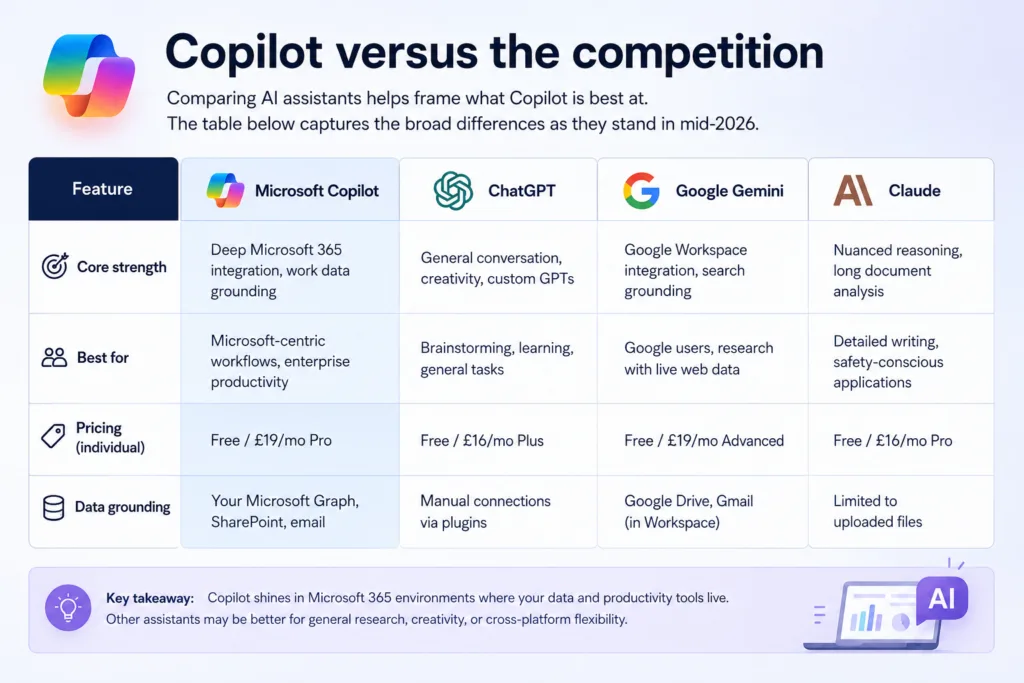
Comparing AI assistants helps frame what Copilot is best at. The table below captures the broad differences as they stand in mid-2026.
| Feature | Microsoft Copilot | ChatGPT | Google Gemini | Claude |
|---|---|---|---|---|
| Core strength | Deep Microsoft 365 integration, work data grounding | General conversation, creativity, custom GPTs | Google Workspace integration, search grounding | Nuanced reasoning, long document analysis |
| Best for | Microsoft-centric workflows, enterprise productivity | Brainstorming, learning, general tasks | Google users, research with live web data | Detailed writing, safety-conscious applications |
| Pricing (individual) | Free / £19/mo Pro | Free / £16/mo Plus | Free / £19/mo Advanced | Free / £16/mo Pro |
| Data grounding | Your Microsoft Graph, SharePoint, email | Manual connections via plugins | Google Drive, Gmail (in Workspace) | Limited to uploaded files |
If your working life revolves around Outlook, Teams, and SharePoint, Copilot wins by default. For a deeper comparison with Google’s offering, we have a dedicated Google Gemini Explained: Features, Models, Pricing & How to Use It guide. ChatGPT remains a more creative, flexible companion for many, but it cannot match Copilot’s awareness of your last ten email threads.
What the future likely holds
Microsoft is pushing hard on agentic AI, where Copilot will be able to perform multi-step tasks autonomously across applications. Imagine telling it to “book travel for the Berlin conference, reserve a hotel near the venue, and block my calendar” and having it just do it. That is the direction of travel. We will also see deeper integration with third-party apps through Copilot Studio and more powerful on-device models for latency-sensitive tasks. Updates tend to land rapidly, so what I have described here is a snapshot of mid-2026. I expect the landscape to shift again within months.
Should you use Microsoft Copilot?
If you already pay for Microsoft 365, Copilot Pro is a modest cost that can save real time day to day. Students writing essays, analysts wrestling with spreadsheets, and managers buried in email will likely notice the difference. Developers should just get GitHub Copilot: it tends to pay for itself within the first week of heavy coding. For casual users, the free version is a perfectly good AI chat experience, especially if you like having it built into Windows.
Do not buy the hype that Copilot will replace critical thinking. It will not. But for the rote, repetitive parts of knowledge work, it is already one of the more useful AI tools out there. Just verify its output, lock down your data permissions, and keep an eye on what it actually produces.
Frequently Asked Questions
What exactly is Microsoft Copilot?
It is an AI assistant integrated across Microsoft’s ecosystem, using large language models and your work data to help with writing, analysis, coding, and more.
How much does Microsoft Copilot cost?
The free tier costs nothing. Copilot Pro is about £19 per user/month, and Copilot for Microsoft 365 is £24.70 per user/month with an annual commitment. GitHub Copilot starts at £8.20/month.
Is there a free version of Copilot?
Yes, a free version is available on the web, in Windows, and on mobile devices. It includes AI chat and basic image generation but does not provide integration inside the desktop Microsoft Office apps.
How is Copilot different from ChatGPT?
Microsoft Copilot is deeply integrated with Microsoft 365 and can securely use your organisational data to provide contextual assistance. ChatGPT is a general-purpose AI assistant and does not natively access your emails, files, or documents unless you explicitly connect supported tools.
Can I use Microsoft Copilot without a Microsoft 365 subscription?
Yes. You can use the free web and Windows versions without a Microsoft 365 subscription. However, to access AI features inside Word, Excel, PowerPoint, and Outlook, you need Copilot Pro with a qualifying Microsoft 365 subscription or a business licence.
What is GitHub Copilot?
GitHub Copilot is an AI-powered coding assistant designed for developers. It helps write code, suggest functions, generate tests, explain existing code, and answer programming questions directly within supported IDEs.
How does Microsoft handle privacy with Copilot?
Microsoft states that prompts and responses submitted through enterprise Copilot services are not used to train foundation models. Enterprise data remains within your Microsoft 365 tenant, and Copilot only accesses information that the signed-in user already has permission to view.
Can Copilot create presentations from scratch?
Yes. In Microsoft PowerPoint, Copilot can generate a complete presentation from a topic, prompt, or existing Word document, including slide layouts, speaker notes, and suggested visuals.
Does Microsoft Copilot work offline?
No. Microsoft Copilot relies on cloud-based AI models, so an active internet connection is required for all Copilot features.
What’s the difference between Copilot Pro and Copilot for Microsoft 365?
Copilot Pro is designed for individual users who want AI capabilities in Microsoft Office desktop apps. Copilot for Microsoft 365 is intended for businesses and enterprises, adding Microsoft Graph grounding, enterprise-grade security, compliance features, and licensing for organisational use.