
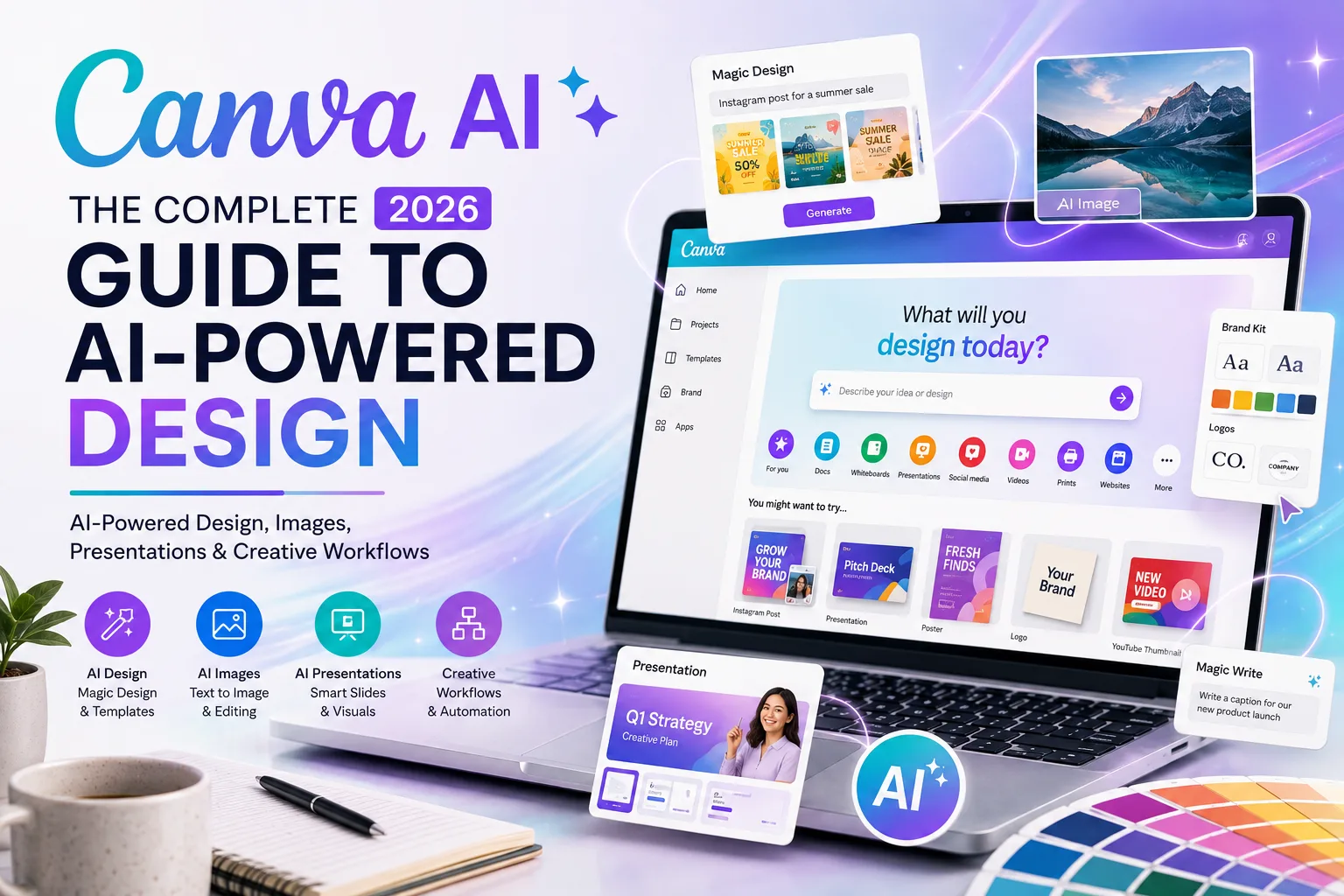
Most people who open Canva have an idea in their head and no clear route to a finished visual. You stare at the blank canvas, and the gap between what you imagined and what you can actually make feels bigger than it should. Canva AI has been closing part of that gap. It doesn’t do the creative thinking for you, but it cuts down the time between having an idea and having something to look at.
What Is Canva AI?
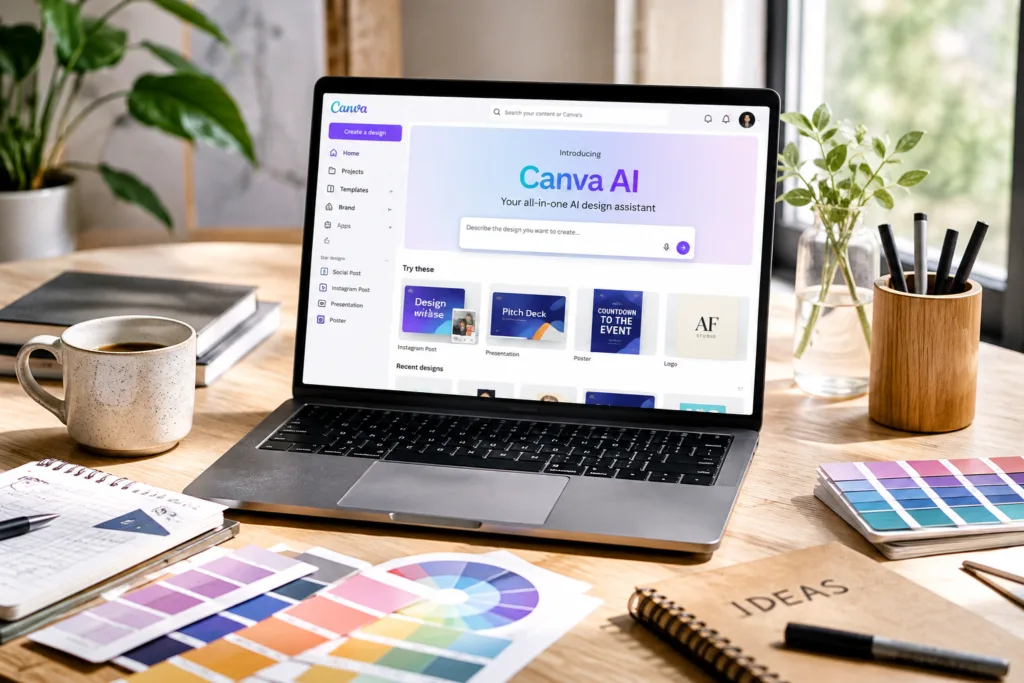
Canva AI isn’t one button with a glow around it. It’s a set of AI features built directly into Canva’s existing design editor. Instead of jumping between different apps to generate an image, write copy, remove a background, or build a presentation structure, you stay inside one workspace. The AI capabilities sit alongside the drag-and-drop editor, the template library, the brand kits, and the stock media. That’s the part worth understanding first: it works more like design software with generation built in, rather than an image generator bolted onto a design platform.
When people refer to Canva AI, they usually mean Magic Design, Magic Media, the AI writing assistant, background remover, and the various smart editing features. Some are powered by Canva’s own models, and some leverage partnerships with other AI providers. The practical outcome is that you can type a description of a social media graphic and watch a structured, editable design appear, complete with suggested fonts and colour pairings. That is fundamentally different from generating a standalone image and then figuring out how to use it later.
Why Canva AI Is Different From Using a Standalone AI Tool
The interesting thing about Canva AI is that the generation step is rarely the final step. In a dedicated AI image generator, you might craft a beautiful landscape or product shot, download the PNG, and then open another programme to add text, logos, or layout adjustments. Canva collapses that process. You generate an image directly onto a canvas that already knows the dimensions of an Instagram post, a presentation slide, or a printed flyer. The moment the AI finishes, you can resize, crop, adjust transparency, overlay branded elements, or swap colours without exporting anything.
This matters a lot for people who aren’t professional designers. With standalone tools, it’s tempting to accept the generated result as finished, because editing feels like a separate, intimidating task. Inside Canva, editing feels like a natural next step, since you’re already in an environment built for tweaking layouts and typography. The AI output ends up being raw material rather than a finished piece. For small business owners, content creators, and students, that lowers the barrier between generating an idea and actually publishing it.
Workflow observation: The most overlooked advantage of integrated AI design is that you can generate variations of an image while seeing it in place alongside your headline and brand colours. This immediate visual context often leads to better creative decisions than judging an isolated AI image.
Canva AI Features You Should Actually Know
Canva’s AI features have expanded steadily, but not all of them are equally useful for everyday work. Some solve genuine friction points, and others feel like technology demonstrations. The following are the capabilities that tend to appear in real workflows rather than just product announcements. Availability can vary by plan and region, and Canva occasionally renames features, so checking the current tool names inside your account is always sensible.
AI-Powered Design Generation
Magic Design takes a text prompt or an uploaded image and produces a set of fully editable templates. You might describe a “minimalist yoga studio price list with pastel greens” and receive multiple layout options with placeholder text and coordinated colour palettes. The output is not always perfect, but it provides a starting point that often saves twenty minutes of blank-canvas hesitation.
AI Image Generation
Canva’s AI image generator, accessible through Magic Media and other entry points, creates images from text descriptions. The quality has improved noticeably, and because generation happens inside the editor, you can immediately drop the result into your design. The image generation works best with descriptive prompts that include style, lighting, and composition details rather than short vague phrases.
AI Writing Assistance
Canva includes an AI writing assistant that can generate or rewrite text directly on your designs. It is useful for headline suggestions, short body copy, and social media captions. It is less suited to long-form writing, but for the kind of concise text that appears on graphics, it often provides a decent first draft.
AI Presentations
You can describe a presentation topic, and Canva AI will generate a structured slide deck with relevant visuals and suggested talking points. The generated slides tend to look visually polished but often contain generic placeholder content. The real value lies in the structural outline and design consistency rather than the written content, which usually needs substantial editing.
AI Photo Editing
Beyond basic filters, Canva AI allows you to select areas of an image and instruct the AI to modify them. You can replace backgrounds, remove objects, or adjust specific elements using natural language. It works well for simple edits like removing a distracting object from a product photo. For complex compositions, the results can be unpredictable.
Background Removal and Object Editing
The background remover is fast and surprisingly accurate for clearly defined subjects. Combined with the AI object selection tools, you can isolate products, people, or graphics and place them onto new backgrounds without leaving Canva. This used to require separate software and some patience.
AI-Powered Social Media Content
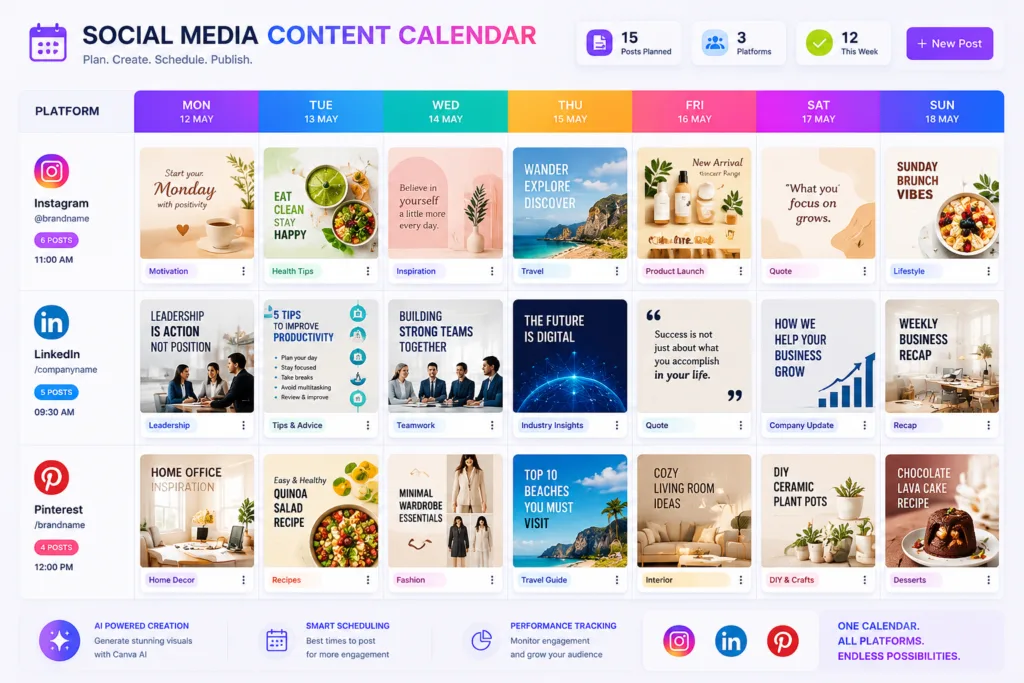
Canva can generate platform-specific templates and suggest content calendars. The AI analyses your prompt and brand preferences to produce designs sized correctly for Instagram, LinkedIn, Pinterest, and other platforms. It reduces the repetitive work of resizing and adapting a single idea across multiple formats.
AI Video and Motion Features
Short video generation and animated elements are available through Canva’s AI video tools. You can generate clips from text prompts or apply motion to static designs. The video quality is not yet at the level of dedicated AI video platforms, but for social media snippets and simple animated presentations, it covers the basics.
Canva AI Image Generator: How It Works
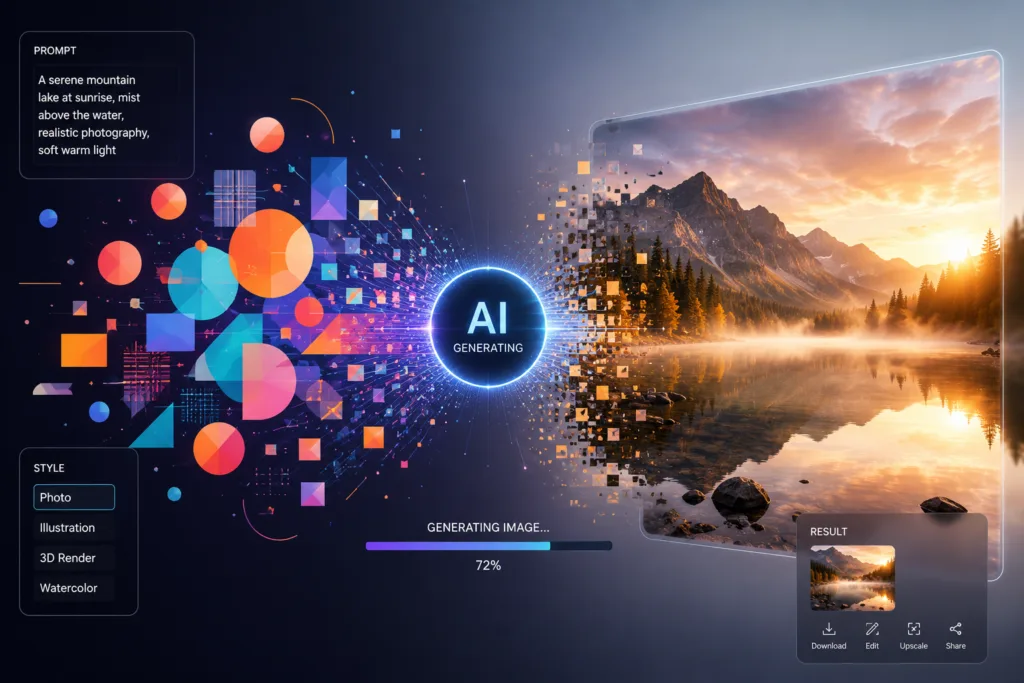
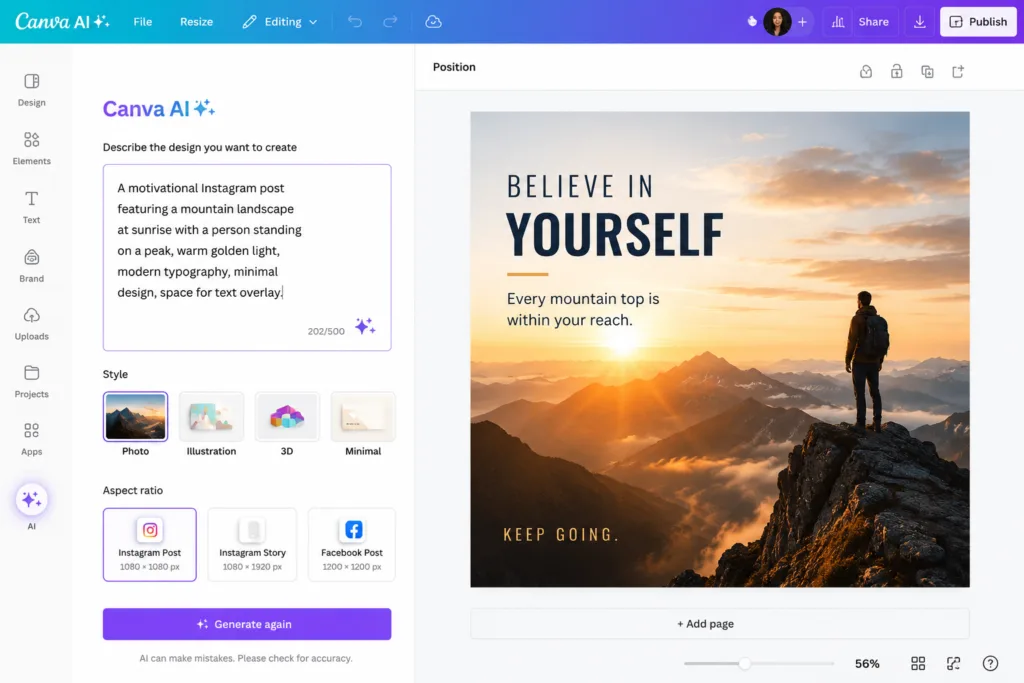
The image generator turns text descriptions into visuals. You type a prompt, select a style or aspect ratio, and Canva produces several variations. The key to useful output is understanding that the AI responds to descriptive language, not just keywords. A prompt that reads “a coffee cup” will produce something generic. A prompt that describes the setting, lighting, materials, and intended mood produces something far closer to what you actually need.
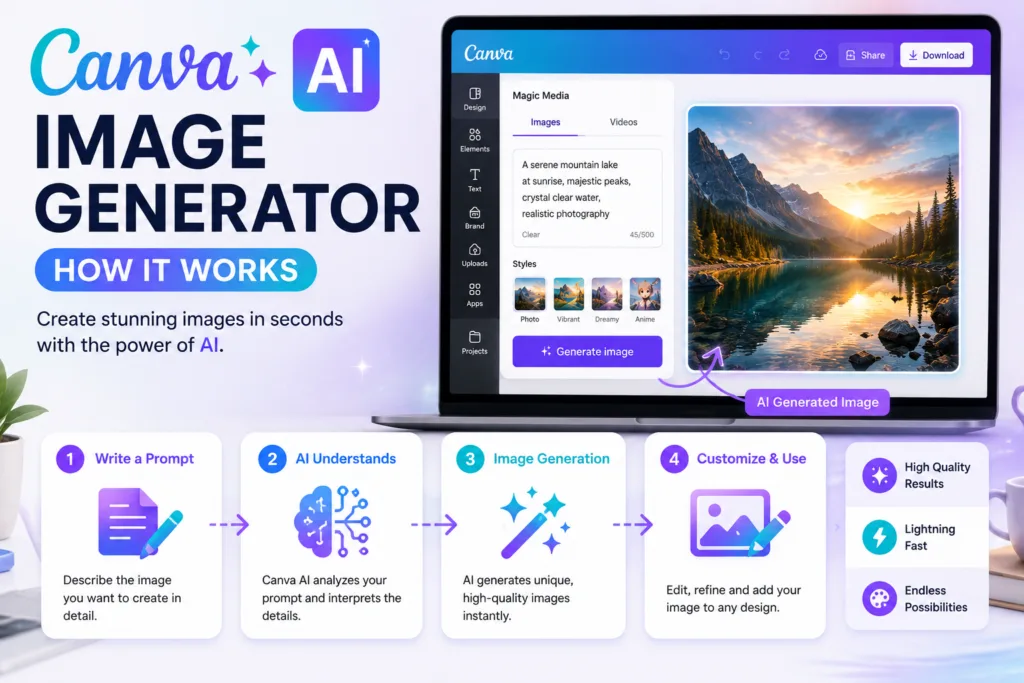
Canva AI Prompt
“Create a cinematic editorial photograph of a modern Punjabi café in Chandigarh during golden hour, warm sunlight entering through large windows, contemporary Indian interiors, natural customers, premium lifestyle photography, realistic textures, 35mm lens, shallow depth of field.”
This prompt works because it specifies location, time of day, interior style, human presence, photographic equipment, and depth of field. The AI has enough constraints to avoid generic café imagery while leaving room for natural variation.
When you understand that the generator interprets the entire prompt as a connected scene description rather than a list of tags, your approach changes. Instead of thinking “I need keywords for coffee, shop, warm,” you start thinking about the visual narrative. The difference shows in the output.
How to Write Better Canva AI Prompts
Prompt writing for design generation is slightly different from writing prompts for standalone AI image tools. Because Canva AI often places images into a wider design context, you get better results when you tell it how the visual is actually going to be used.
A prompt for a blog hero image, for example, needs a different composition from an Instagram Story. Similarly, a YouTube thumbnail needs stronger visual contrast, while a presentation background usually benefits from clean composition and generous copy space.
A useful reusable structure covers the subject, environment, visual style, lighting, composition, colour palette, mood, important details, and intended use. You do not need every element in every prompt, but the more useful direction you provide, the less Canva AI has to fill in with generic defaults.
      "Create [subject] in [environment], using [visual style], with
      [lighting], [composition], [colour palette], [mood], [important details],
      designed for [use case]."
Practical Canva AI Prompt Examples
The following prompts cover common design situations. Notice that each one gives Canva AI specific visual direction rather than leaving the creative decisions completely open.
Instagram Post
“A flat lay photograph of sustainable skincare products on a textured linen surface, soft natural window light, pastel sage and cream colour palette, minimal composition with negative space for text overlay, editorial beauty photography style, designed for Instagram feed.”
YouTube Thumbnail
“A bold close-up of a person looking surprised while holding a smartphone, vibrant coral and electric blue lighting, strong facial expression, clean background with subtle gradient, high contrast, designed for YouTube thumbnail with space for large text overlay.”
Product Advertisement
“A sleek wireless headphone floating against a dark navy background with soft golden light reflections, premium product photography, sharp details on the ear cushion texture, minimal luxury aesthetic, shallow depth of field, designed for a website banner ad.”
Restaurant Poster
“An overhead shot of a beautifully plated Italian pasta dish on a rustic wooden table, warm candlelight, scattered fresh herbs, rich red and golden tones, editorial food photography, inviting atmosphere, designed for a restaurant promotional poster.”
Fashion Campaign
“A model wearing earthy-toned linen clothing walking through a sunlit olive grove, soft Mediterranean light, natural pose, cinematic colour grading, warm terracotta and olive green palette, editorial fashion photography, designed for a brand lookbook.”
Travel Poster
“A vintage travel poster style illustration of the Lake District in autumn, rolling hills with golden foliage, a small stone cottage by the water, muted oranges and deep greens, nostalgic mid-century travel art, designed for a print poster.”
Business Presentation
“A clean modern office interior with a large wooden conference table, soft daylight from floor-to-ceiling windows, professional yet warm atmosphere, neutral greys with subtle blue accents, designed for a corporate presentation title slide with copy space.”
Blog Hero Image
“An open laptop on a minimalist desk next to a notebook and a cup of tea, morning sunlight casting soft shadows, calm and focused mood, warm neutral tones with touches of sage green, lifestyle photography, designed for a productivity blog hero image.”
Children’s Educational Graphic
“A colourful illustrated map of the solar system, friendly cartoon planets with expressive faces, bright pastel colours, clear labels area, educational and playful style, designed for a children’s classroom poster.”
Professional LinkedIn Visual
“A confident professional standing in a modern co-working space, natural light through large windows, smart casual attire, warm and approachable expression, clean background, corporate lifestyle photography, designed for a LinkedIn article header.”
Pro tip: When a Canva AI result feels too generic, do not simply add more adjectives. Add useful design information instead, such as the intended platform, aspect ratio, available copy space, camera perspective, lighting direction, visual hierarchy, or the exact subject that needs to stand out.
Canva AI for Social Media
Social media content creation is where Canva AI feels most immediately practical. The platform already knows the correct dimensions for every major network, and the AI can adapt a single concept across multiple formats. If you design an Instagram post, Canva can generate versions sized for Facebook, LinkedIn, Pinterest, and Twitter with minimal manual adjustment. For someone managing multiple channels, this alone saves hours each week.
A realistic workflow starts with a content idea, perhaps a quote, a statistic, or a product announcement. You describe the visual concept to Canva AI, generate a base design, refine the typography and colour palette to match your brand, and then use the resize tool to produce platform variants. The AI handles the repetitive layout adjustments, but the human eye is still needed to check that each version communicates effectively at its specific size and aspect ratio.
YouTube thumbnails and TikTok covers benefit from a slightly different approach. These need high contrast, clear focal points, and often an expressive human element. Canva AI can generate background imagery and suggest layouts, but you will likely want to customise the facial expressions and text placement manually to maximise click-through rates.
Canva AI for Bloggers and Content Creators
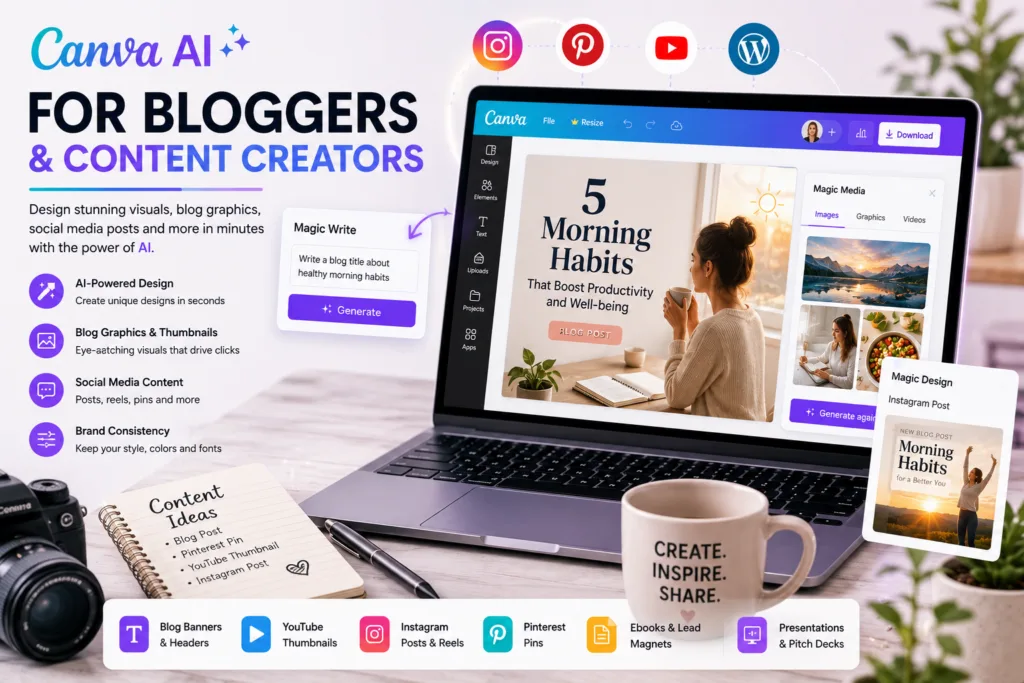
Content creators often juggle writing, design, and promotion simultaneously. Canva AI helps by generating visual assets that match the tone of an article without requiring a separate photoshoot or illustrator. Featured images, in-post graphics, and Pinterest pins can all originate from the same AI-generated visual direction, keeping the aesthetic cohesive.
For bloggers producing lead magnets such as checklists or short eBooks, Canva AI can generate cover designs and internal page layouts. The AI writing assistant can also draft headlines and section summaries, though these should be treated as starting points rather than publishable copy. The combination of writing assistance and design generation makes it possible to produce a complete downloadable PDF without switching between multiple tools.
When creating infographics, Canva AI can suggest layouts and generate icons or background elements. The data and the narrative structure, however, still require human judgement. An AI-generated infographic with inaccurate data hierarchy can look beautiful while communicating nothing useful, which is why it still needs human editorial oversight. Combining visual AI with a wider content strategy usually means building a modern AI-assisted content strategy that treats design as part of a larger communication system, not a separate step.
Canva AI for Students
Students frequently need to produce presentations, study aids, posters, and diagrams under time pressure. Canva AI can generate a presentation structure from a topic description, providing slides with relevant imagery and suggested bullet points. The danger is accepting the AI-generated content without critical review. AI presentation text often sounds plausible but lacks depth or specific examples that a lecturer would expect.
A smarter approach uses Canva AI for the visual framework while writing the actual content separately. Generate the slide deck, note which sections need stronger evidence or personal analysis, and edit accordingly. For visual subjects like geography, biology, or design, the AI image generator can produce diagrams and illustrations that would otherwise require advanced drawing skills. Students looking for a broader toolkit may find additional options among the best AI tools for students, which cover writing, research, and organisation alongside design.
Canva AI for Small Businesses
Small business owners rarely have the budget for a dedicated designer, yet they need menus, flyers, social media posts, price lists, and promotional materials consistently. Canva AI reduces the repetitive part of this work. A restaurant owner can generate a weekly specials poster by describing the dishes and the desired mood. A real estate agent can produce property listing graphics with consistent branding. A fitness coach can create workout programme visuals without starting from scratch each time.
The real benefit isn’t polish, it’s that the designs get made at all, on time, without the owner needing skills they don’t have. Human judgement still matters here: choosing which generated option feels right, adjusting colours to match the shop interior, making sure the phone number is legible. For e-commerce sellers, Canva AI can generate product lifestyle images and ad creatives, though product accuracy can vary, and you should always verify that generated images fairly represent what you actually sell.
Canva AI for Marketing
Marketing teams use Canva AI to accelerate campaign asset creation. Social media calendars, ad creatives, email headers, and presentation decks can all begin as AI-generated drafts. The speed advantage comes from parallel exploration: instead of one designer producing three concepts over two days, a marketer can generate fifteen variations in ten minutes and select the most promising directions for refinement.
Content repurposing is another area where Canva AI fits naturally. A single blog post can become a series of quote graphics, a carousel post, a Pinterest infographic, and a short video teaser. The AI handles the dimensional resizing and initial layout, while the marketer ensures each asset makes sense independently. When integrated with modern AI-assisted content workflows, this approach transforms how marketing teams think about content production cycles.
Canva AI for Presentations
Presentation design has an odd tension: slides need to look professional, but the content is what actually matters. Canva AI can generate a polished deck in seconds, complete with images, icons, and consistent typography. The risk is that the visual polish masks weak content. Audiences can sense when slides are beautiful but hollow.
If you use Canva AI for presentations, start by writing your key points independently. Then let the AI generate a visual structure around those points. Edit the generated text aggressively. Remove slides that do not serve the narrative, even if they look lovely. The best AI-assisted decks feel like the presenter cared about them, not like a template got filled in automatically. One small change that makes a surprisingly big difference is replacing AI-generated generic images with specific visuals that relate directly to your examples or data.
Canva AI for Image Editing
Image editing inside Canva has become a lot easier with AI. Removing unwanted objects from product photos, changing plain backgrounds to contextual settings, or extending an image to fit a different aspect ratio used to require software like Photoshop. Now they happen directly on the canvas.
For e-commerce, the ability to take a product shot on a white background and place it into a lifestyle setting using AI background generation is genuinely useful. The results are not always perfect, shadows and reflections can look artificial, but for social media and casual use, the quality is often sufficient. Manual editing remains better for high-stakes print work or images where precise colour accuracy matters.
Canva AI vs Other AI Creative Tools
Comparing Canva AI to dedicated tools isn’t really about picking a winner, it comes down to what each one is built for. Canva AI excels at integrated design workflows. You generate, edit, brand, and export in one place. Dedicated AI image generators such as those covered in our complete Midjourney guide and Flux AI often produce higher-fidelity images with more artistic control, but they require separate design software to become finished assets.
For AI video, tools like Runway AI and Seedance 2.0 offer more advanced generation and editing capabilities than Canva’s current video features. Canva’s strength is turning those videos into branded social content with text overlays and templates. For AI writing, ChatGPT provides deeper, more nuanced text generation, while Canva’s writing assistant works best for short-form design copy.
| Aspect | Canva AI | Dedicated AI Image Generators |
|---|---|---|
| Ease of use |
Very High Integrated editor |
Moderate, separate workflow |
| Design workflow | Complete, from generation to export | Image only, needs external design tool |
| Templates | Extensive library | None or minimal |
| Image generation | Good, improving steadily | Often higher fidelity and control |
| Brand consistency | Strong, brand kits and templates | Requires manual application |
| Presentations | Built-in AI presentation maker | Not available |
| Best use case | Complete visual content creation | High-quality standalone imagery |
Canva AI vs ChatGPT for Creative Work
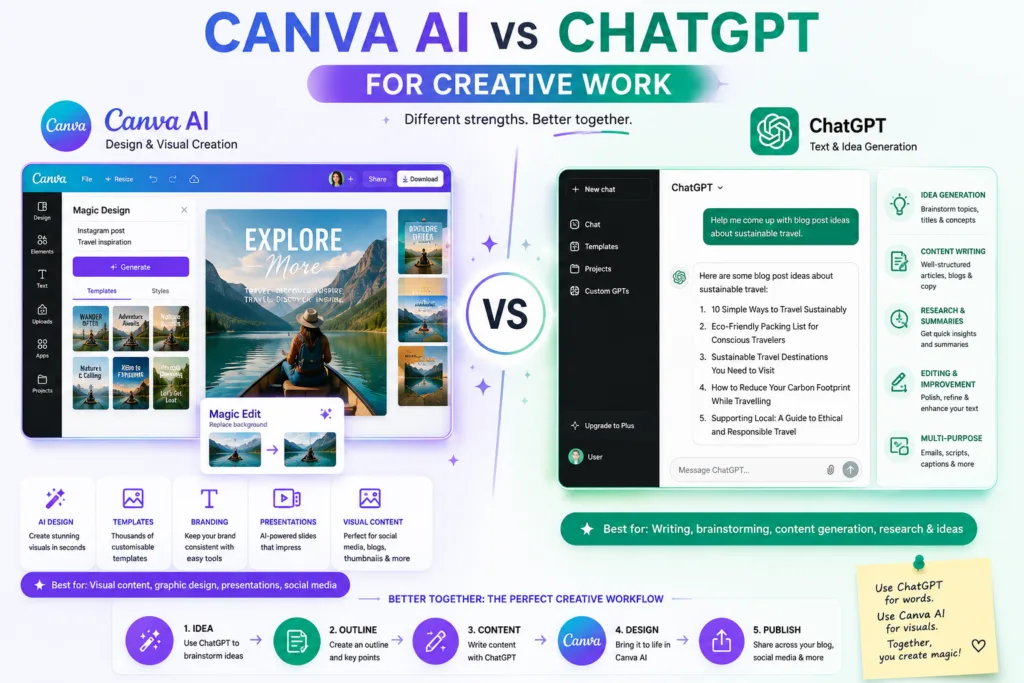
These tools address different parts of a creative project. ChatGPT, explored in the complete ChatGPT guide, helps with ideation, scriptwriting, research synthesis, and detailed copy. Canva AI visualises those ideas. A sensible workflow uses ChatGPT to develop a content plan or write the text, then moves to Canva AI to design the visual assets. Neither tool replaces the other. They meet at the point where an idea in words needs to become something visual.
Canva AI and the Future of Visual Search and AI Assistants
Visual communication is shifting from static design files toward dynamic, AI-assisted content systems. The broader ecosystem of AI browser assistants suggests a near future where design tools understand context beyond the canvas, pulling in brand guidelines, audience data, and performance history to inform generation. Canva AI fits into that trend by putting generation right where design already happens, which cuts down the friction between having an idea and publishing it. The next logical step is AI that adapts visuals based on where and how they perform, not just how they look in isolation.
How Canva AI Fits Into a Modern AI Toolkit
No single AI tool covers everything. A practical modern toolkit might include a selection of AI tools for different purposes: Google Gemini or Microsoft Copilot for research and productivity, Perplexity AI for deep search, and Canva AI for visual creation. These tools don’t talk to each other directly, they connect through how you actually use them in sequence. You research with one tool, write with another, design with Canva AI, and publish. Understanding how AI tools work at a fundamental level helps you choose the right one for each stage rather than forcing a single platform to do everything.
A Practical Canva AI Workflow I Would Actually Use
Build a Weekly Canva AI Content Workflow
If I were building a weekly content system, the workflow would follow a clear sequence rather than jumping randomly between AI features. The goal is to use AI for acceleration while keeping creative control at the decision points that matter.
Start with the idea
Define the core message before opening Canva. A clear sentence about what the visual needs to communicate prevents aimless generation.
Define the audience
Where will this design appear? Instagram, a blog, a presentation? The platform determines dimensions, tone, and information density.
Write the visual brief
Turn the idea into a descriptive prompt. Include subject, mood, colours, and composition. This is the most important step for useful AI output.
Generate the first design
Use Magic Design or Magic Media. Expect the first result to be a draft, not the final piece.
Generate alternatives
Produce variations. Small prompt tweaks can lead to significantly different compositions.
Fix weak areas
Use AI editing to remove distractions, adjust backgrounds, or refine specific elements.
Apply brand identity
Set brand colours, upload logos, and choose brand fonts. This step transforms a generic design into something recognisably yours.
Check typography
AI often places text poorly. Adjust font sizes, spacing, and alignment manually.
Export
Choose the correct format and resolution for the intended platform.
Repurpose the asset
Use Canva’s resize tool to adapt the design for other platforms, checking each variant carefully.
The key idea: Let Canva AI handle repetitive production work, but keep human judgement involved in the message, visual direction, branding, typography, and final quality check.
Canva AI Mistakes That Make Designs Look Obviously AI-Generated
AI-generated designs often share telltale weaknesses. Recognising these helps you avoid them. Overly perfect imagery, where every surface is impossibly smooth and every shadow mathematically precise, signals artificiality immediately. Generic stock-style compositions with people staring meaningfully at nothing or objects floating without purpose appear frequently in AI output.
Bad typography is another major giveaway. AI sometimes places text in awkward positions, uses font pairings that clash, or creates hierarchy problems where everything fights for attention. Too many elements crowded into one design, weak contrast between text and background, and proportions that look slightly wrong all contribute to an uncanny feeling. The fix is usually editing, removing unnecessary elements, adjusting spacing, and treating the AI output as a starting layout rather than a finished design. Using the first generated result without refinement is the single most common mistake.
Common oversight: Ignoring the intended platform. A design that looks balanced on a large canvas may become illegible when scaled down to a mobile story size. Always preview at the actual display dimensions.
Canva AI Prompts That Produce Better Results
Canva AI Prompt Library
Below is a curated set of prompts designed to produce specific, usable results across different styles and use cases. Each prompt includes enough detail to guide the AI towards a coherent visual while remaining flexible enough for variation.
Photography Prompt
“A candid portrait of a street musician in Lisbon, late afternoon light, warm terracotta and cream tones, shallow depth of field, 85mm lens, natural expression, textured background of old Portuguese tiles.”
Illustration Prompt
“A hand-drawn botanical illustration of lavender and rosemary sprigs, fine line art with soft watercolour washes, muted purple and sage green, vintage scientific journal style, white background.”
Poster Prompt
“A minimalist architecture poster featuring the Sydney Opera House, geometric abstract interpretation, navy blue and warm gold, clean lines, negative space for text, modern gallery print style.”
Product Prompt
“A ceramic coffee mug placed on a reclaimed wood surface, steam rising gently, morning light from a nearby window, cosy and calm atmosphere, neutral beige and warm brown palette.”
Social Media Prompt
“A vibrant flat lay of colourful stationery and planner accessories, organised chaos composition, bright pastel palette, natural daylight, designed for Instagram with central copy space.”
Business Prompt
“A professional handshake between two businesspeople in a bright modern office, glass walls and indoor plants visible, natural confident expressions, corporate lifestyle photography, clean and optimistic.”
Editorial Prompt
“An editorial photograph of a thought leader sitting in a library, warm ambient lighting, shelves of books out of focus behind, intelligent and approachable mood, magazine portrait style.”
Minimalist Prompt
“A single monstera leaf shadow on a cream plaster wall, strong morning sunlight, minimalist composition, high contrast between light and shadow, calm and airy.”
Cinematic Prompt
“A dramatic landscape of the Scottish Highlands at dusk, low clouds rolling over the glen, cinematic colour grading with deep greens and muted blues, wide-angle composition, atmospheric.”
Educational Prompt
“A clean diagram showing the water cycle, friendly illustration style, clear labels and arrows, soft blue and green palette, designed for a primary school science poster.”
Travel Prompt
“A bustling night market in Marrakech, glowing lanterns and spice stalls, warm golden and crimson tones, lively atmosphere, travel editorial photography, slight motion blur on moving people.”
Food Prompt
“A top-down photograph of a colourful Buddha bowl, fresh vegetables arranged neatly, bright natural lighting, vibrant greens, oranges and purples, healthy lifestyle food photography.”
Fashion Prompt
“A street style photograph of someone wearing a tailored beige trench coat in an urban setting, overcast soft light, minimalist fashion, muted neutral tones, editorial look.”
Technology Prompt
“A futuristic but clean smart home device on a wooden side table, soft ambient lighting, sleek product design, warm and inviting technology aesthetic, lifestyle tech photography.”
How to Make Canva AI Designs Look Less AI-Generated
Making AI-generated designs feel human involves deliberate imperfection and manual intervention. Real design has subtle asymmetry, slightly imperfect spacing, and textures that feel organic. Adding a faint grain overlay or using matte paper textures can reduce the overly smooth digital look. Typography matters too. Swap AI-selected fonts for typefaces you chose deliberately, even similar ones, and the design stops reading as automated.
Colour correction matters more than many people realise. AI often produces images with slightly unnatural colour balance, too saturated or with odd shadow tones. A quick adjustment of warmth, contrast, and saturation brings the image closer to photographic reality. Cropping is similarly underused. AI compositions sometimes place the subject too centrally. Cropping to an off-centre focal point immediately adds visual interest. Most importantly, check the details. AI can generate hands with odd finger positions, text that looks like real words but is actually gibberish, and objects that blur into each other. Catching and fixing these is usually what separates polished work from work that looks generated.
Canva AI Limitations You Should Know Before Relying on It
Being honest about limitations prevents frustration later. AI-generated text within Canva designs can be generic or factually weak. It works for placeholder copy and simple headlines but should not be trusted for technical accuracy without verification. Human anatomy remains challenging for AI image generators across the industry, and Canva’s is no exception. Hands, facial symmetry, and body proportions can appear distorted, especially in complex poses.
Brand consistency across many generated designs can drift if you are not using brand kits carefully. The AI does not inherently understand your visual identity; it follows prompt instructions. Complex layouts with precise alignment or multi-column text often need manual adjustment after generation. Copyright and licensing considerations around AI-generated images are still evolving, and Canva’s terms may update. If you are using generated images for commercial work, review Canva’s current licensing information directly rather than relying on summaries. Feature availability also varies by plan and geographic region, so what one user accesses may differ from another.
Is Canva AI Good Enough for Professional Work?
The answer depends on the type of professional work. For social media management, small business marketing, blogging, internal presentations, and basic advertising, Canva AI is often sufficient and sometimes excellent. The speed and integration advantages frequently outweigh the raw image quality gap compared to specialised tools. For high-end commercial photography, complex brand identity projects, or print work requiring precise colour management, dedicated professional software and human expertise remain preferable.
Many professionals use Canva AI for rapid prototyping and social content while relying on other tools for final client deliverables. This hybrid approach acknowledges that AI accelerates exploration but does not replace design judgement. If you are creating visuals where the communication clarity matters more than artistic uniqueness, Canva AI handles the job well. If you need a genuinely original campaign image, you might generate initial concepts in Canva AI and then refine them elsewhere or commission original work.
How I Would Use Canva AI in a Real Content Workflow
If I were building a weekly content system, I would use Canva AI as the visual production engine while keeping strategic decisions elsewhere. Monday would involve planning topics and writing drafts using separate writing tools. Tuesday, I would generate design concepts for each piece using Canva AI prompts tailored to the specific platforms. Wednesday, I would refine the best generations, apply brand elements, and write final copy onto the designs. Thursday, I would resize and adapt everything for different channels. Friday, I would schedule and publish. In this structure, Canva AI handles the heavy visual lifting, but the thinking, editing, and quality control remain human-driven. This prevents the content from feeling like it was produced by a machine on autopilot.
Canva AI for a One-Person Content Team
Operating as a solo content creator means wearing every hat. Research, writing, design, social media, and marketing all compete for limited time. Canva AI reduces the design bottleneck significantly. You can generate blog graphics, social posts, and presentation slides in the same session without context switching. The AI writing assistant provides headline ideas and caption drafts, though editing remains essential. Knowing roughly how AI tools work sets realistic expectations: they speed things up, but they don’t remove the need for creative direction.
Canva AI and Brand Consistency
Brand consistency requires more than similar colours. It involves recurring typographic choices, consistent spacing, recognisable image treatments, and a coherent visual voice. Canva’s brand kit feature lets you save logos, colour palettes, and fonts, which the AI can reference when generating designs. However, generating everything from scratch each time can actually work against consistency. A better approach uses AI to create a set of reusable templates, then generates only the variable elements like images or headlines for each new piece. This balances efficiency with a unified brand presence. Over-reliance on generation without template discipline leads to a fragmented visual identity, even if every individual design looks attractive.
Canva AI Prompt Formula Cheat Sheet
Keeping a few prompt structures handy speeds up the generation process and improves output quality.
Canva AI Prompt Frameworks
Use these simple formulas as starting points when you want more consistent and purposeful results from Canva AI. Replace each bracketed element with details relevant to your project.
For Photography
          [subject] + [location] + [lighting] + [camera style] +
          [composition] + [mood] + [visual details]
For Product Advertising
          [product] + setting + [materials] + [lighting] +
          [brand mood] + [composition] + [advertising style]
For Social Media
          [topic] + [audience] + [platform] + [visual style] +
          [colour palette] + [headline area] + [CTA space]
For Editorial Artwork
          [subject] + [concept] + [art direction] + [colour palette] +
          [texture] + [composition]
Canva AI: What I Would Use It For First
If you are opening Canva AI for the first time, start with something small and immediately useful rather than attempting a complex multi-page project. Generate a social media post for a specific platform, edit the text, apply your brand colours, and export it. This end-to-end experience teaches you more about the workflow than reading about features. Pay attention to where the AI saved you time and where you needed to intervene. That awareness shapes how you use the tool moving forward. The temptation is to generate dozens of designs and feel productive, but the real skill is generating fewer, better-targeted designs and refining them into something you would actually publish.
The Next Phase of AI Design Is Not About Making More Images
We are approaching a saturation point with AI-generated images. The internet is filling with them, and audiences are getting sharper at spotting what feels synthetic. So the value of a tool like Canva AI probably won’t come from generating even more visuals. It’s more likely to come from helping people communicate ideas faster and more clearly, through better integration with brand systems, a better read on audience and context, and AI that works more like a design partner than a machine that spits out pictures on request.
Visual AI will probably connect more with content strategy, performance data, and personalisation over time. Imagine a design tool that doesn’t just generate a social post but adjusts its visual tone based on what engaged your audience last month. That’s more interesting to me than another bump in image resolution. Design as communication will likely matter more than design as generation. Human judgement, taste, and editorial instinct aren’t going anywhere. What’s changing is how fast you can get from a messy idea to something you’d actually publish, and Canva AI is one of the tools shortening that path.