

You probably do not need another AI chatbot. You probably need the five repetitive tasks sitting between your inbox and your CRM to stop happening manually. That is where Zapier AI becomes interesting: the model is not there to chat with, it is there to do useful work inside an automation that already runs your business.
If you have ever built a traditional Zap, you know the pattern. A trigger fires, actions run, and data moves from one app to another. The problem is that traditional automation is binary. It works when things are predictable. As soon as you introduce messy, unstructured input, like a customer email or a free-form form submission, traditional rules start to break.
Zapier AI tries to solve that. It adds an interpretation layer to automation. Instead of just saying “if X happens, do Y”, it lets the workflow understand what X actually means before deciding what Y should be.
This guide is built from a developer perspective. It will explain what Zapier AI actually is, how it works under the hood, how to design workflows that survive real business conditions, and where the technology still falls short.
What Is Zapier AI, Exactly?
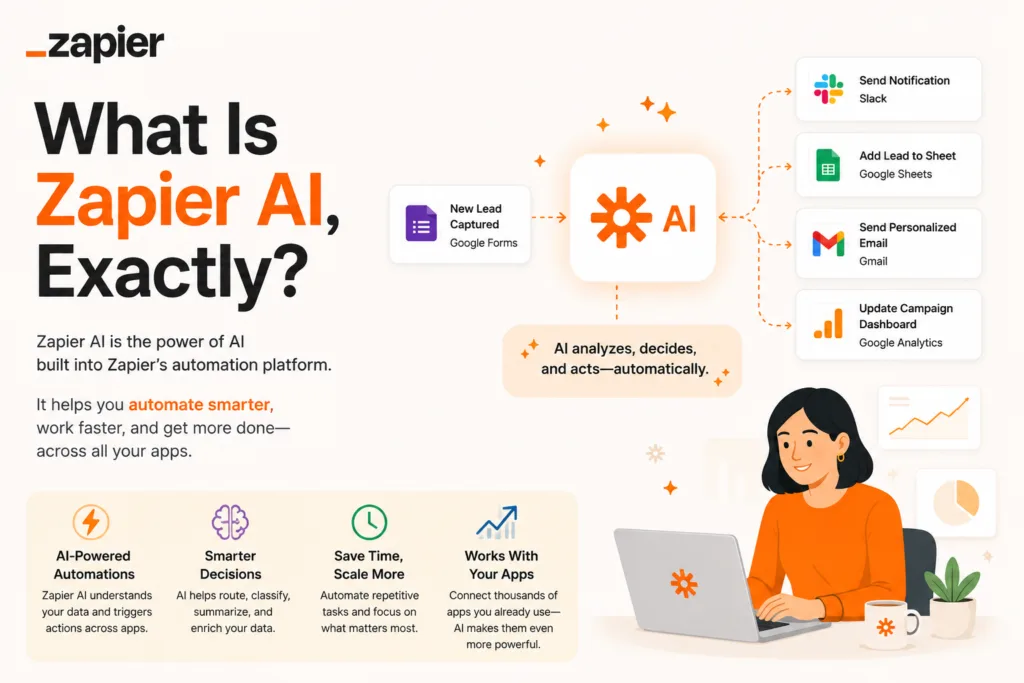
Zapier AI is not so much a single product as a collection of AI capabilities embedded inside the existing Zapier ecosystem. The most common features include the “AI by Zapier” steps, which let you use natural language prompts as a processing layer between a trigger and an action. You can also find AI-powered chatbots, AI agents (Zapier Agents), and a growing number of AI-specific integrations with external models.
Think of Zapier AI as the application layer between data and decision. You still build a Zap with a trigger and an action. But between those two points, you can now place an AI step that reads, summarises, transforms, or classifies the incoming data.
Developers who have already worked with how AI tools work will recognise the pattern immediately. You are giving a large language model a specific task, constraining its output, and then piping that output into the next deterministic step. The clever part is that Zapier handles the orchestration, authentication, and retry logic for you.
It is worth noting that ChatGPT-style interfaces are conversational, while Zapier AI is transactional. Rather than having a chat, you are running a function that happens to use a language model inside it.
How Zapier AI Works Under the Hood
At its core, a Zap is an event-driven program. A trigger event occurs, such as a new row in Google Sheets or a new email arriving. That event produces a payload, usually JSON. Traditional Zaps take that payload and map fields directly into the next app. For example, the “From” field in an email becomes the “Name” field in a CRM.
Zapier AI inserts an intermediate processing block. When an AI step runs, the Zap sends a portion of the payload to a language model, along with a prompt you have defined. The model returns a response, which is then parsed and mapped to the next action. It is essentially a remote function call wrapped in a no-code interface.
Here is a simplified representation of what happens inside a Zapier AI step:
{
  "input": "Customer wants a refund for a delayed order",
  "prompt": "Classify this message into refund, shipping, or complaint. Return JSON.",
  "model_response": "{\"category\": \"refund\", \"confidence\": 0.93}"
}
The response is not free text. In a well-designed workflow, you force the model to return structured data, which makes it possible to map fields reliably into the next app. If you let the model return whatever it wants, your automation will fail downstream.
This is where understanding AI in modern content and business strategy helps. The people getting the most out of Zapier AI are not necessarily the ones with the fanciest prompts. They are the ones who treat AI output as an untrusted data source that must be validated before it is allowed to touch anything important.
The Basic Anatomy of an AI-Powered Zap
Let us break down a typical AI-powered Zap into its components. This will help you understand where things can go wrong and where you can add safety checks.
Component order in a well-built Zapier AI workflow
- Trigger: The event that starts everything, such as a new form submission, email, webhook, or spreadsheet row.
- Data preparation: Optional step that filters or formats raw input. This can be a Zapier Formatter step or a custom code step.
- AI processing: The Zapier AI step that analyses, classifies, extracts, or transforms the data.
- Validation / Filter: A conditional step that checks whether the AI output makes sense. If confidence is low, route to a human review step.
- Action: The final app that receives the processed data, such as a CRM update, Slack message, or email.
- Error handling and logging: Catch failures, retry if needed, and log everything for auditing.
That sounds simple, but there is a catch. Most people skip steps 2 and 4. They connect a trigger directly to an AI step and then directly to an action. This works in demos. It fails when a customer writes a 400-word email that starts with “Hi, hope you are well…” and buries the actual request in the final paragraph.
The fix is to treat every AI output as if it might be wrong. Because sometimes it will be.
Zapier AI vs Traditional Automation: A Comparison
Before you replace every workflow with AI, it is worth understanding when AI actually adds value. Traditional automation is deterministic. Given the same input, it produces the same output. AI is probabilistic. It makes a prediction, and that prediction can vary.
| Task | Traditional Automation | Zapier AI | Best Use Case |
|---|---|---|---|
|
Field mapping
|
✓ Excellent | Not needed | Moving data between apps with known structures |
|
Text classification
|
✕ Poor (requires rigid rules) | ★ Strong | Reading emails, form responses, or support tickets |
|
Data extraction
|
Only if formatted perfectly | ★ Good | Pulling invoice numbers, dates, or names from free text |
|
Decision logic
|
✓ Excellent (filters & paths) | ⚠ Risky (high-stakes) | Routing to humans when confidence is low |
|
Content generation
|
✕ Not possible | ★ Good | Drafting summaries, social posts, or internal notes |
|
Predictable calculations
|
✓ Excellent | ✕ Never use AI | Maths, date logic, currency conversion, and exact calculations |
The general rule is simple. If you can write a set of if-else rules that covers 100% of cases, you do not need AI. Use traditional automation. If you need to interpret meaning, tone, or intent from messy text, that is where Zapier AI earns its place.
What You Can Actually Build With Zapier AI
The most useful Zapier AI workflows fall into a few clear categories. These are not hypothetical examples. They are patterns that repeat across marketing, sales, support, operations, and developer productivity.
Lead classification and routing
A new lead arrives from a website form. The message is free text, so traditional filters struggle. Zapier AI reads the message, classifies it as “sales”, “support”, “partnership”, or “other”, and routes it to the right Slack channel or CRM pipeline.
Example lead classification prompt
You are a lead classification assistant.

Read the incoming lead information and return valid JSON with:
{
"lead_type": "",
"priority": "",
"reason": ""
}

Rules:
* Do not invent information.
* Use only the supplied lead data.
* Priority must be low, medium or high.
* Lead type must be one of: sales, support, partnership, other.
Where this breaks: if the form field is empty or the visitor writes “hello” with no context, the AI may guess. That is why you add a filter after the AI step. If the reason field contains “incomplete information”, route the lead to a human instead of the CRM.
Email summarisation for team notifications
A support inbox receives hundreds of emails daily. A Zap can trigger on a new email, summarise the thread using Zapier AI, and post a concise digest to a Teams or Slack channel. This is especially useful for teams that do not want to forward every email manually.
If you have used Microsoft Copilot or similar tools for summarisation, you already understand the value. The difference here is that the summarisation happens automatically inside a workflow, not in a chat window.
Customer support ticket routing
Similar to lead routing, but with different categories: refund, technical issue, billing, feature request, and complaint. The AI step reads the ticket and assigns it to the right team. You can also add a sentiment score to prioritise urgent complaints.
If you already use a customer support tool, you might want to connect this with document intelligence platforms that understand your files for deeper context extraction.
Content repurposing for social media
Blog posts, podcast transcripts, or long articles can be summarised into multiple social posts. Zapier AI can take an RSS feed or a Google Doc and generate short, platform-specific snippets. This works well for teams that publish content regularly but do not have time to manually repurpose everything.
Content workflows often connect with tools like Jasper AI for marketing content or Notion AI for internal writing. Zapier AI can sit at the centre, orchestrating the flow between them.
CRM data cleaning
Duplicate records, inconsistent formatting, and missing fields are constant problems. A Zap can run on a schedule, pull recent CRM entries, clean the data using AI steps, and update the records. For example, standardising job titles or extracting company names from email addresses.
This is one area where Amazon Bedrock or other generative AI services overlap with Zapier AI. The difference is that Zapier AI is already inside your automation stack, so you do not need to build a separate pipeline.
Invoice information extraction
If you receive invoices as PDFs or images, you can use a Zap with an AI extraction step to pull invoice number, date, total amount, and vendor name into a spreadsheet or accounting app. The AI does not replace optical character recognition, but it helps structure the raw OCR output.
This connects naturally with document intelligence platforms that already handle complex file parsing.
Practical Workflow Examples
Let us look at a few complete workflows that you could build in an afternoon. These are not hypothetical. They are the kind of automations that save real hours every week.
| Workflow | Trigger | AI Step | Final Action | Human Review |
|---|---|---|---|---|
| Lead triage | New form submission | Classify lead type and priority | Add to CRM with tags | Low confidence leads go to Slack for manual check |
| Support ticket routing | New email in support inbox | Extract intent and sentiment | Route to correct team queue | Urgent tickets flagged for manager |
| Meeting notes to tasks | New transcript or audio file | Summarise and extract action items | Create tasks in project management tool | Review AI-generated tasks before assignment |
| Content repurposing | New blog post published | Generate social snippets | Draft posts in scheduling tool | Marketing team approves before publishing |
| Invoice extraction | New PDF in cloud storage | Extract structured invoice data | Add to accounting spreadsheet | Manual check for high-value invoices |
If I were building a lead triage workflow, I would not let the AI make the final decision for high-value leads. I would set a rule: if the confidence score is below 0.85, or if the lead type is “partnership”, send a notification to a human instead of automatically updating the CRM. That small safety check prevents embarrassing follow-ups.
How to Build a Zapier AI Workflow, Step by Step
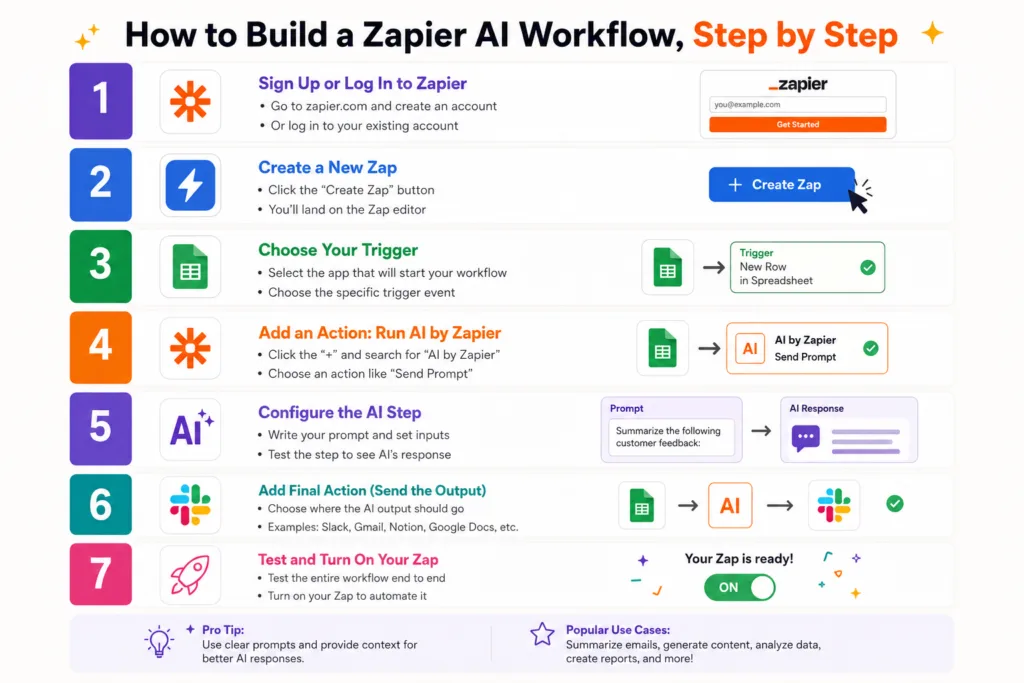
Here is a complete walkthrough for building a reliable AI-powered lead classification Zap.
Step 1: Choose the trigger
Start with a form app like Typeform, Google Forms, or a webhook. For this example, use a new form submission trigger.
Step 2: Capture input data
Identify the fields that matter. For lead classification, you probably need the message body, name, email, and maybe company name. Do not pass unnecessary fields to the AI. It adds noise.
Step 3: Clean the data
Use a Formatter step to trim whitespace, convert text to lowercase where appropriate, and remove obviously empty fields. If the email field is missing, set a placeholder like “unknown”. This prevents the AI from hallucinating a contact email.
Step 4: Add the Zapier AI step
Choose the “AI by Zapier” step and select the classification or custom prompt option. Map the cleaned fields as inputs.
Step 5: Write the prompt
Use a constrained prompt that asks for JSON output only. Example:
You are a lead classification engine.

Read the input below and return JSON with these keys:
"lead_type", "priority", "reason"

Rules:
lead_type must be sales, support, partnership or other.
priority must be low, medium or high.
reason must be a brief explanation under 20 words.

Input:
{{message}}
Step 6: Define structured output
Configure the AI step to return structured data if available. If not, your prompt must force JSON. Then use a Code step or Formatter step to parse the JSON string into individual fields.
Step 7: Add paths or filters
Create conditional logic. For example, if priority is “high”, add a tag and send a Slack alert. If confidence is low, route to a human review step instead.
Step 8: Send the result to another application
Map the parsed fields to your CRM, such as HubSpot, Salesforce, or Pipedrive. Use the Zapier field mapping interface to connect each AI output field to the corresponding CRM field.
Step 9: Add error handling
Enable Zapier’s built-in retry and error notifications. If the AI step fails or the JSON parsing breaks, you want to know before the workflow silently dies.
Step 10: Test with bad inputs
Do not test with the perfect lead message. Test with a blank submission, a one-word answer, and a 500-word email. That is where you will find the edge cases that break your automation.
Prompts That Work Well Inside Automation
Prompt design is the most underrated part of AI automation. A vague prompt produces vague output. A constrained prompt produces structured data that you can actually use downstream.
Here are several prompt templates that have worked reliably in Zapier AI workflows. Remember that prompt behaviour can vary between models and updates. Always test with real data.
Email summarisation
Summarise the email thread below in 3 bullet points.
Focus on action items and decisions.
Do not include greetings or signatures.

Email content:
{{email_body}}
Customer support routing
Classify the support ticket below into exactly one category:
refund, technical_issue, billing, feature_request, complaint.

Return JSON:
{
"category": "",
"sentiment": "positive|neutral|negative",
"summary": "under 15 words"
}
Content repurposing
Turn the following article excerpt into 3 social media posts.
One for LinkedIn, one for X, and one for Instagram.
Keep each post under 180 characters.
Do not use hashtags unless relevant.

Article:
{{article_excerpt}}
CRM data cleaning
Standardise the job title below.
Return only the most common professional title.
Examples:
"Head of Mktg" becomes "Head of Marketing"
"Sr. Dev" becomes "Senior Developer"

Input:
{{job_title}}
Invoice information extraction
Extract these fields from the invoice text:
invoice_number, invoice_date, total_amount, vendor_name, currency.

Return JSON only.
If a field is missing, use null.

Invoice text:
{{invoice_text}}
Meeting notes to action items
Read the meeting transcript below.
List all action items as JSON array with objects:
{"task": "", "assignee": "", "due_date": null}

Do not invent assignees if not mentioned.

Transcript:
{{transcript}}
Internal notifications
Convert this status update into a concise Slack message.
Tone: professional, friendly, no emojis.
Maximum 50 words.

Status:
{{status_text}}
Research summarisation
Read the research notes below.
Return a structured summary with:
key_findings (3 bullet points)
open_questions (list)
recommended_next_steps (list)

Research notes:
{{notes}}
These prompts are not magic. They work because they ask for specific output formats and forbid the model from adding extra commentary. That is what makes them useful inside an automated pipeline.
Zapier AI for Developers
Developers often have a love-hate relationship with no-code tools. Zapier AI is no exception. The visual editor can feel limiting if you are used to writing Python or JavaScript. But for many integration tasks, it is faster than building and maintaining a custom API connector.
One thing I like about Zapier AI is that it gives you a code step when you need it. You can write JavaScript or Python inside a Zap to transform data before or after the AI step. This means you can keep the no-code simplicity for the main flow while still writing logic when the UI is not enough.
If you already use GitHub Copilot AI or Cursor AI, you will recognise the pattern. These tools reduce repetitive work, but they do not replace judgment. Zapier AI is the same. It handles the boring parts so you can focus on the parts that actually need a human brain.
For developers, the real power comes from combining Zapier AI with webhooks. You can expose a webhook endpoint in Zapier, then call it from your own code. This turns Zapier AI into a service you can invoke from any application, even if that application is not natively supported by Zapier.
// Example: calling a Zapier webhook from Node.js
const response = await fetch('https://hooks.zapier.com/hooks/catch/123456/abcdef/', {
  method: 'POST',
  headers: { 'Content-Type': 'application/json' },
  body: JSON.stringify({
    message: 'Customer wants to upgrade their plan',
    source: 'custom-app'
  })
});
const result = await response.json();
console.log(result);
This pattern is extremely useful when you need to run AI processing outside the typical Zap triggers. You can also use Replit AI to prototype the webhook consumer before moving it into production.
If you are already deep into the AWS ecosystem, Amazon Bedrock offers similar generative AI capabilities with more control. Zapier AI is the easier path when you want speed and app integrations without managing infrastructure.
Zapier AI for Marketing Teams
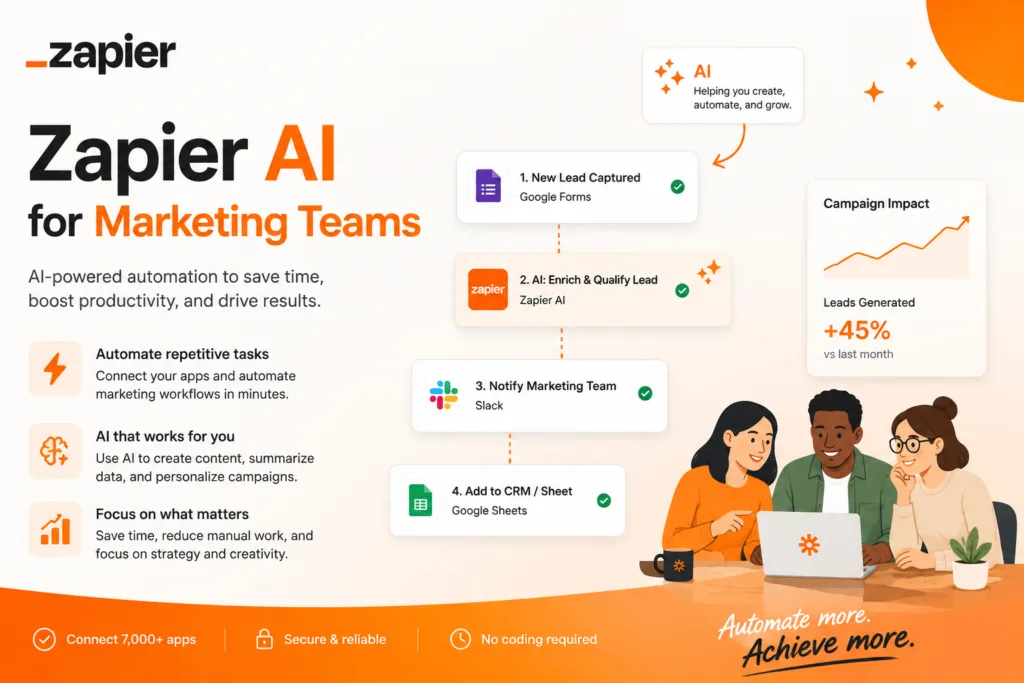
Marketing teams use Zapier AI mostly for content operations and lead handling. The biggest time saver is not writing long blog posts. It is the small repetitive writing tasks that sit between tools.
For example, when a new lead downloads a whitepaper, a traditional Zap adds them to an email list. With Zapier AI, you can also generate a personalised follow-up email that references the whitepaper topic. Then the workflow sends the draft to a marketing manager for approval before it goes out.
Content repurposing is another strong use case. You publish a blog post, and Zapier AI creates a LinkedIn summary, an X thread, and a newsletter blurb. If you already use Jasper AI for long-form content, you can connect it with Zapier AI to automate the distribution workflow.
Marketers who understand modern AI-driven SEO strategies will also use Zapier AI to monitor search performance and route content briefs to writers automatically.
However, I would not let Zapier AI publish anything automatically without a review step. AI-generated marketing copy can be tone-deaf or factually wrong. A human should always check before it reaches customers.
Zapier AI for Small Businesses
Small businesses often lack dedicated operations teams. The founder handles sales, support, invoicing, and marketing. Zapier AI can act as a lightweight operations assistant, handling the repetitive parts of each function.
A common small business workflow is this: a new email arrives from a customer. Zapier AI reads it, determines whether it is a sales enquiry or support issue, and either adds it to the CRM or replies with a canned response asking for more details. The business owner only steps in for high-value or complex cases.
This is similar to what AI browser assistants do for manual research, but the Zapier AI version runs in the background without anyone clicking a button.
Small teams also benefit from using Zapier AI to generate weekly summaries from their project management tool. Instead of reading every task update, the AI produces a digest of progress and blockers, posted to Slack every Friday.
For students or very small operations, AI tools designed for individual productivity are still relevant, but Zapier AI adds the cross-app automation layer that individual tools lack.
Zapier AI for Content Workflows
Content workflows are where generative AI and automation meet most naturally. Zapier AI can connect content creation tools with distribution channels, reducing the manual copy-paste work that usually happens after publishing.
A typical content pipeline with Zapier AI:
- New article published in WordPress or a headless CMS.
- Zapier AI generates a summary and several social snippets.
- The snippets are sent to Buffer or Hootsuite as drafts.
- A notification goes to Slack for the team to review.
- Approved snippets are scheduled automatically.
If your content includes images, you might use Midjourney AI for image generation or Flux AI for professional image workflows as separate steps. For video, Runway AI or Seedance 2.0 could be triggered by a Zap after the article goes live.
Voice content can also be automated. If you publish a blog post, a Zapier AI workflow could generate a short voice-over using ElevenLabs AI voice generation and attach it to the post as an audio version. This is becoming more common as teams experiment with multi-format content.
For visual content generation at scale, Canva AI integrates nicely with Zapier, letting you create simple graphics from AI-generated text prompts inside a workflow.
If you are working with video, Synthesia AI offers AI avatars that can be triggered after a script is generated by Zapier AI. This is not necessary for every team, but it shows how deep the automation stack can go.
Zapier AI for Lead Management
Lead management is the bread-and-butter use case for Zapier AI. The problem is simple: leads come from many sources, in many formats, and they need to be routed to the right person or system quickly.
With Zapier AI, you can build a unified lead intake system. All incoming leads, whether from web forms, email, LinkedIn, or webhooks, go through the same classification step. The AI extracts the key information and decides where the lead should go.
But here is where things get interesting. You can also use AI to enrich leads. For example, if a lead provides only a name and email, a Zapier AI step could use a tool like Perplexity AI to search for public information about the company and add it to the CRM record. This saves the sales team from doing manual research.
Again, do not skip the human review step for high-value leads. AI enrichment can return inaccurate or outdated information. It should be treated as a starting point, not a final answer.
Zapier AI for Customer Support
Customer support is another area where Zapier AI is extremely effective, especially for triage. Support teams receive a huge volume of repetitive requests. Many of them are simple and can be answered with existing knowledge base articles.
A Zapier AI workflow can:
- Read the incoming ticket.
- Classify the issue type.
- Check sentiment.
- Search a knowledge base (using AI or a connected tool).
- Draft a suggested response.
- Send the response to a human agent for approval.
- If the agent approves, the response is sent and the ticket is closed.
This is a classic human-in-the-loop design. The AI does the initial work, but a human makes the final call. It reduces response time without removing accountability.
Support workflows also benefit from Google Gemini’s multilingual capabilities, especially when handling international customers. Zapier AI can translate and summarise before routing to the right regional team.
Zapier AI for Data Processing
Data processing is less glamorous than content generation, but it is where Zapier AI provides the most consistent value. Extracting structured data from unstructured text is a classic AI strength.
Common data processing workflows:
- Extracting invoice fields from PDFs and images.
- Parsing resumes or job applications into structured candidate profiles.
- Converting customer feedback into sentiment and topic tags.
- Standardising messy spreadsheet data.
- Translating and normalising product descriptions for e-commerce.
If you have ever debugged a webhook at 2am, you already know why data validation matters. AI output is not deterministic. Always add a validation layer after the AI step to ensure the data types and formats are correct before it reaches your database.
For advanced document processing, platforms that specialise in document intelligence can work alongside Zapier AI. Use the specialised tool for complex parsing and Zapier AI for the simpler classification and routing tasks.
AI Agents and Zapier
Zapier has been pushing into AI agents, which are a step beyond simple AI steps. An AI agent can make a series of decisions and call multiple tools to complete a task, rather than just transforming a single input into an output.
Think of it like this: a Zapier AI step is a function. A Zapier AI agent is a small program that can choose which functions to call. For example, an agent might receive a Slack message, decide to look up a customer in the CRM, find their recent orders, check if they are due for a follow-up, and then draft an email.
This is powerful, but it also introduces more risk. The more decisions an agent makes, the more chances it has to make a mistake. That is why agent workflows need even stronger logging and human oversight.
If you have used Amazon’s AI tools or similar agent frameworks, you know that autonomous agents are still not reliable enough for fully unattended operation in most business contexts. Zapier AI agents are useful, but they should be given clear boundaries and fallback paths.
Webhooks, APIs and Zapier AI
Webhooks are the bridge between Zapier AI and the rest of your software stack. If your app does not have a native Zapier integration, you can usually connect it using a webhook.
A webhook trigger in Zapier is an HTTP endpoint that listens for incoming POST requests. When your app sends data to that endpoint, the Zap runs. You can then pass that data through an AI step and send the result to another webhook or an app action.
{
  "event": "new_customer_feedback",
  "data": {
    "text": "The checkout process was confusing and I almost gave up.",
    "user_id": "12345"
  }
}
This payload is sent to a Zapier webhook URL. The Zap runs, the AI classifies the feedback as “checkout_usability”, and the result is logged in a Google Sheet and sent to the product team via Slack.
If you are building your own API, you can also use Zapier AI as a processing layer. For example, your Node.js backend can call a Zapier webhook, wait for the AI result, and then continue with its own logic. This is sometimes faster than integrating directly with OpenAI or another LLM provider, especially if you are already using Zapier for other automations.
Developers who want more control over the AI layer might look at Amazon Bedrock’s complete guide or how AI tools work behind the scenes to understand the trade-offs.
How to Make AI Automation More Reliable
AI automation fails when people assume the model will always behave. It will not. Here are the most important reliability practices I have learned from building these workflows.
| Problem | Why It Happens | How to Reduce It |
|---|---|---|
| Inconsistent output format | Model returns free text instead of JSON | Force JSON in the prompt, add a parsing step, use a validation filter |
| Hallucinated information | Model fills gaps with invented data | Add “Do not invent information” to prompts, cross-check with real data |
| Wrong classification | Input is ambiguous or too short | Request more context from the user, use confidence scores, route to human when low |
| Downstream app receives bad data | No validation between AI and action | Use filters and code steps to validate data types and required fields |
| Silent failures | AI step errors but Zap retries and then stops | Enable error notifications, add logging step, monitor failed runs |
| Uncontrolled costs | AI step runs on every trigger, even irrelevant ones | Add filters before the AI step to reduce unnecessary AI calls |
One rule I follow: use deterministic automation wherever deterministic logic is enough. If you can write a filter for “if the email subject contains ‘invoice’, do X”, do that. Do not waste an AI call on something a simple rule can handle.
Also, never let AI perform irreversible actions without a human safeguard. Sending an email, deleting a record, or charging a customer should always have a confirmation step, even if that step is just a Slack approval button.
Common Zapier AI Mistakes
Mistake 1: Vague prompts. If you ask the AI to “summarise this nicely”, you will get unpredictable output. Be specific about length, format, and tone.
Mistake 2: No validation after the AI step. AI output is a suggestion, not a fact. Validate before it touches your CRM or database.
Mistake 3: Letting AI make final decisions on high-stakes items. For refunds, legal content, or sensitive customer communication, keep a human in the loop.
Mistake 4: Testing only with perfect data. Real-world data is messy. Test with empty fields, long emails, typos, and unexpected formats.
Mistake 5: Ignoring error logs. Zapier AI runs silently. Set up notifications for failed runs or you will not notice when the workflow breaks.
Mistake 6: Over-automating. Not every task needs AI. Sometimes a simple filter or a spreadsheet formula is faster, cheaper, and more reliable.
Mistake 7: Storing sensitive data without thinking. AI steps send data to third-party models. Understand where your data goes before processing PII or confidential information.
Security, Privacy and Data Handling
Whenever you add AI to a workflow, you are sending data to a model provider. That data may include customer information, internal documents, or financial details. You need to be careful about what you allow into an AI step.
Best practices for Zapier AI security:
- Use OAuth for connected apps, not raw API keys where possible.
- Apply least privilege: only give Zapier access to the specific data it needs.
- Do not send full customer records to the AI if a summary would be enough.
- Mask or redact sensitive fields like credit card numbers, passwords, or personal IDs before the AI step.
- Understand the data retention policies of the AI model provider. Zapier may pass data to OpenAI, Anthropic, or other providers depending on your configuration.
- Enable audit logging in your connected apps so you can trace what Zapier changed.
- For regulated industries, consult your compliance team before automating any AI workflow that touches regulated data.
I would not put customer payment details or health records into a Zapier AI prompt unless the provider explicitly guarantees the required compliance standard. And even then, I would think twice. The risk is rarely worth the time saved.
Debugging Zapier AI Workflows
Debugging an AI workflow is different from debugging traditional code. You cannot just set a breakpoint and inspect the variable. You have to look at the input, the prompt, and the output together.
When a Zapier AI workflow fails, start with these questions:
- What was the exact input payload? Was it empty, truncated, or formatted oddly?
- What prompt was used? Did it ask for the correct output format?
- What did the AI actually return? Check the raw output in the Zap run history.
- Did the parsing step fail? If the AI returned valid JSON but the parser expected a different structure, that is a common mismatch.
- Did the downstream app reject the data? Maybe a field was too long, or a date was in the wrong format.
One trick I use is to add a temporary “Log to Google Sheets” step after the AI step. This saves the raw AI output for every run, so I can review historical results and spot patterns. Then I remove or disable the logging step once the workflow is stable.
If you have experience with how AI models behave in production, you will recognise that debugging is often about prompt refinement and input validation, not about the model itself.
When Traditional Automation Is Better Than AI
AI is not a universal upgrade. In many cases, traditional Zapier automation is faster, cheaper, and more reliable. Here is when to skip the AI step:
- Simple data movement: Copying fields from one app to another. No AI needed.
- Predictable formatting: If the input always follows the same pattern, use a Formatter step.
- Exact calculations: AI cannot do reliable maths. Use a code step or a spreadsheet formula.
- High-volume, low-complexity tasks: AI calls cost money and add latency. If a simple filter works, use it.
- Compliance-sensitive data: If you cannot afford a hallucinated answer, keep it deterministic.
The best automations use AI only where it adds clear value. The rest of the workflow should remain as boring and predictable as possible.
When Zapier AI Is Actually Worth Using
So when should you reach for Zapier AI? The strongest cases are:
| When Zapier AI is the right tool | Why AI helps |
|---|---|
| You receive unstructured text from customers or leads | AI can extract meaning that rules cannot capture. |
| You need to classify hundreds of messages daily | AI scales better than manual review. |
| You want to generate draft responses or summaries | AI produces a starting point for human editing. |
| You are connecting multiple apps that do not speak the same data language | AI can translate and transform data between formats. |
| You have a repetitive task that requires basic reasoning | AI handles ambiguity better than rigid filters. |
If you are unsure, start with one small workflow. Measure the time saved and the error rate. Then expand slowly. Do not try to automate your entire business with AI in a weekend.
Illustrative Automation Suitability Chart
This chart is an editorial assessment based on typical use cases. It is not official Zapier data.
Visual Workflow Diagram
This is the ideal shape of a resilient AI workflow. Notice that the human review branch is not an afterthought; it is a built-in escape hatch for low-confidence or high-stakes decisions.
Developer-Oriented Comparison
| Zapier AI vs Custom Development for AI Automation | ||
|---|---|---|
| Requirement | Zapier AI Approach | Developer Consideration |
| Integration speed | Fast Minutes to connect apps | Custom code takes hours or days |
| Flexibility | Moderate Limited to Zapier’s UI and steps | Full control over logic and libraries |
| Maintenance | Low Managed by Zapier | You own the infrastructure and updates |
| Cost at scale | Variable Per-task pricing can add up | Fixed infrastructure cost, variable model cost |
| Custom model usage | Limited Mostly limited to partnered AI providers | Any model, any provider |
| Error handling | Built-in Built-in retry and notifications | You build your own retry and alerting |
If you already maintain a backend with GitHub Copilot or Cursor AI, custom code may be the better long-term choice. Zapier AI wins when you need speed and breadth of integrations without a dedicated engineering team.
Security Considerations in Zapier AI Workflows
I have mentioned security several times, but it deserves its own section. The moment you add AI to an automation, you introduce a new data boundary. That boundary is the API call to the AI model provider.
Zapier’s AI steps typically send your prompt and input data to a third-party model provider, such as OpenAI. That means your customer data may be processed on servers outside your direct control. For most business data, this is acceptable. For sensitive personal data, financial records, or health information, it may not be.
Before using Zapier AI with sensitive data, ask these questions:
- What data exactly will be sent to the AI model?
- Can I minimise the data before the AI step?
- What does the AI provider do with the data after processing?
- Can I use a self-hosted or private AI endpoint instead?
- Do I have consent from the data subject to process their information in this way?
If you are unsure, use a traditional non-AI automation for that workflow. No time saving is worth a data breach or a compliance violation.
AI Image Prompts for This Article
Below are detailed prompts you can use to generate editorial images for this article. These are designed for modern AI image generation tools.
Zapier AI Image Prompts
Premium-ready visual prompts with optimized titles, alt text, captions, filenames and SEO-friendly slugs for your Zapier AI content.
Zapier AI Hero Image
A clean, modern illustration of a glowing orange automation pipeline connecting various app icons, with abstract AI brain waves flowing through the connections. Bright, optimistic, minimal background. No text, no logos.
AI Automation Workflow
Isometric view of a digital workflow with nodes for trigger, AI processing, and action. Soft shadows, blue and orange accents, white background. No text.
Developer Using Zapier AI
A focused developer at a desk with dual monitors, one showing a visual automation builder, the other showing code. Warm lighting, shallow depth of field. No logos, no readable text.
AI Agents and Automation
Abstract representation of multiple AI agents collaborating, with small robotic figures moving data between glowing nodes. Purple and blue palette, futuristic but clean. No text.
Webhooks and APIs
Close-up of a glowing API endpoint with data packets flowing in and out, connected to a cloud. Dark background with orange data streams. No text.
Marketing Automation
A marketing dashboard with social media icons, email drafts, and analytics, all connected by a subtle AI workflow. Bright, colourful, modern. No readable text.
AI Customer Support Workflow
Customer support agent looking at an AI-generated suggested response, with a queue of tickets in the background. Soft, professional lighting. No text.
Future of AI Automation
A minimalist conceptual image of a hand gently guiding a stream of glowing data through a series of connected nodes, representing human-in-the-loop AI automation. Calm, thoughtful, neutral colours. No text.
Where Zapier AI Fits in the Modern Automation Stack
Automation used to be about simple rules. If a new email arrives, create a task. If a form is submitted, add a row to a spreadsheet. That model works, but it is brittle. It cannot handle the fact that most business data is messy, unpredictable, and full of meaning that rules cannot capture.
Zapier AI changes the underlying logic. Instead of “if X happens, do Y,” you get “understand X, decide what matters, then do Y within controlled boundaries.” Small change in wording, bigger change in what the automation can handle.
Modern automation runs as a layered system rather than a single tool. At the bottom sit data sources: email, forms, CRMs, databases, and webhooks. In the middle sit processing layers: filters, code steps, and increasingly AI steps. At the top sit actions: notifications, updates, and approvals.
Zapier AI sits in that middle layer. It does not replace your CRM or your email client; it makes the connections between them smarter.
But the key word is “controlled.” Fully autonomous agents making decisions without oversight are not the near-term picture. What is more realistic is AI doing the heavy lifting on interpretation and drafting, while humans stay in the loop for decisions that require judgment, accountability, or empathy.
That is the honest version of AI automation: not magic, but a tool that cuts down on repetitive thinking rather than replacing it. The teams that get the most out of Zapier AI are usually the ones who understand both its power and its limits.
If you are building a broader AI strategy, you may also want to explore the ultimate guide to AI tools for a wider view of what is available. And if you are just getting started with conversational AI, our ChatGPT beginner guide is a good companion to this article.
Zapier AI is one of the easier ways to add an interpretation layer without rebuilding your entire stack. Just remember: the best workflows stay boring, predictable, and safe. AI should make them smarter, not riskier.